
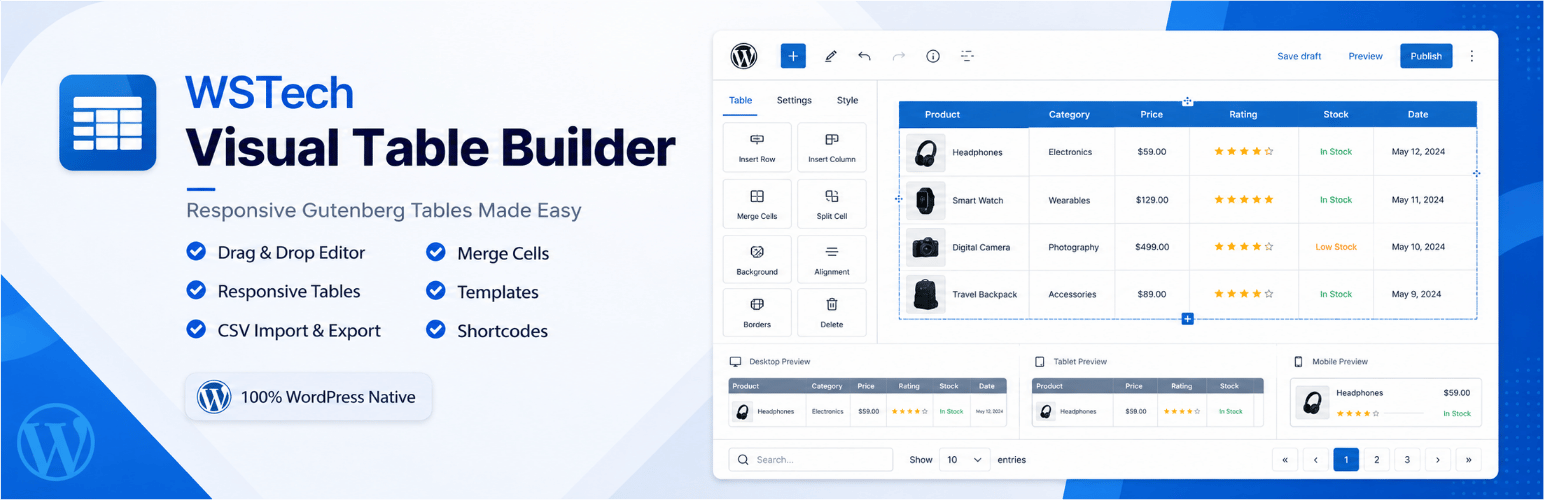

WSTech Visual Table Builder is a powerful Gutenberg block plugin that brings MS Word/Excel-style table creation directly into WordPress — no coding required. Create reusable tables, manage them centrally, and embed them anywhere via shortcodes.
✨ Key Features
Reusable Table Management
* Dedicated “WSTech Tables” admin screen — create, edit, duplicate, delete
* Each table gets a unique shortcode: [wstech_table id="123"]
* Embed tables in Gutenberg, Elementor, Divi, Beaver Builder, Classic Editor, or PHP templates
* Slug-based shortcodes supported: [wstech_table slug="pricing-table"]
* WordPress revisions for table version history
Editor Experience
* Click-to-edit cells with full rich text (bold, italic, underline, strikethrough, links)
* Per-cell formatting: background colour, text colour, alignment, vertical align, padding
* Tab/Shift+Tab keyboard navigation — auto-adds rows at the end
* Right-click context menu for quick row/column operations
* Drag & drop row and column reordering
* Undo / Redo via WordPress native history (Ctrl+Z / Ctrl+Y)
Table Structure
* Header row (thead), footer row (tfoot), first-column headers
* Merge cells (colspan + rowspan) — Shift+click to multi-select, then merge
* Unmerge any merged cell with one click
* Duplicate rows and columns
* Insert/delete rows and columns (above/below/before/after)
* Optional table caption
10 Built-in Templates
* Blank 4×4, Employee Directory, Pricing Table, Product Comparison
* Invoice/Bill, Class Timetable, Sports Standings, Project Tracker
* Budget Tracker, Nutrition Facts
6 Premium Themes
* Default (Indigo), Striped (Sky Blue), Bordered (Slate), Dark, Minimal, Colorful
Data Import / Export
* Export CSV (always available in editor)
* Export JSON (.vtb.json) — full table backup including styles and settings
* Import CSV — file upload or paste, auto-detects delimiter
* Import JSON — restore a previously exported .vtb.json
* Frontend CSV Export button (opt-in per table)
Frontend Interactivity (instant, no page reloads)
* Column sorting (ASC/DESC, numeric + date-aware)
* Live search / row filter
* Pagination with configurable page size
* Hover row highlight
Responsive Design
* Horizontal scroll mode (default)
* Stack on Mobile mode — each row becomes a vertical card with column labels
Universal Compatibility
* Gutenberg Block Editor (native)
* Elementor (Shortcode Widget)
* Divi (Code Module)
* Beaver Builder
* Classic Editor
* PHP templates: <?php echo do_shortcode('[wstech_table id="123"]'); ?>
Privacy / External Services
* The plugin does not send table data to external services.
* Links to the plugin website and donation page are ordinary admin/readme links only.
Source Code and Build
* Public source repository: https://github.com/shivmaikhuri12/wstech-visual-table-builder
* Editable block source files are in the src/ directory.
* Compiled block assets are generated into the build/ directory by @wordpress/scripts.
* Build tools and development dependencies are declared in package.json.
* To rebuild the production assets from source, run:
npm install
npm run build
Uninstall
* Uninstalling the plugin through WordPress removes WSTech Tables created by the plugin and their associated post meta.
🔧 How to Use
Method 1: Reusable Tables (Recommended)
1. Go to WSTech Tables Add New in the admin
2. Name your table and design it using the visual editor
3. Click Publish
4. Copy the shortcode from the sidebar: [wstech_table id="123"]
5. Paste the shortcode anywhere — pages, posts, Elementor, Divi, etc.
Method 2: Inline Tables (Quick)
1. In any post/page, click + Add Block and search for “Visual Table Builder”
2. Design your table directly in the post
3. Save the post — your table is live!
Developer Notes
Data Model: Tables are stored as JSON in post meta (_wstech_table_data) with a version field for future migration support.
Rendering: A shared PHP renderer (WSTech_Table_Renderer) generates frontend HTML for both Gutenberg blocks (via render_callback) and shortcodes.
Block Name: The Gutenberg block namespace is vtb/table-builder (stable, will not change).
Building from source:
cd wp-content/plugins/wstech-visual-table-builder

npm install

npm run build






