
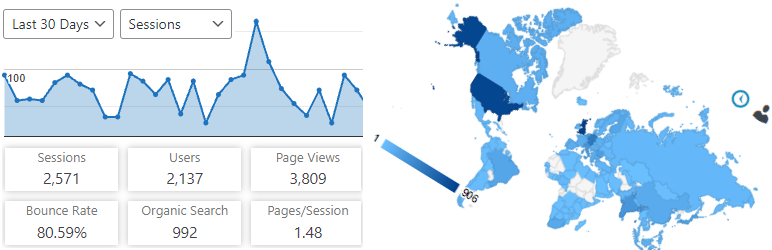

Analytics Insights is a free WordPress plugin that enables site tracking using the latest Google Analytics 4 tracking code. It allows you to view key Google Analytics stats in your WordPress Dashboard.
Google Analytics Reports, Stats and Insights
Analytics Insights displays the reports you need on your dashboard and on the site’s frontend. Audience, acquisition, behavior, engagement and real-time stats are all presented as charts within a dedicated dashboard widget.
In addition to a set of general Google Analytics stats, insights like in-depth Page reports and in-depth Post reports are available.
The Google Analytics tracking code is fully customizable through options and hooks, allowing advanced data collection like custom dimensions and events.
Google Analytics Real-Time Stats
Google Analytics reports, in real-time, in your dashboard screen:
- Real-time number of visitors
- Real-time number of visitors per page
- Real-time device category
Google Analytics Reports and Insights
The Google Analytics insights and reports you need on your dashboard and on the site’s frontend:
- Sessions, organic searches, page views, bounce rate analytics stats
- Locations, pages, referrers, keywords, 404 errors analytics stats
- Traffic channels, social networks, traffic mediums, search engines analytics stats
- Device categories, browsers, operating systems, screen resolutions, mobile brands analytics stats
Google Analytics Tracking
Installs the latest Google Analytics tracking code and allows full code customization:
- Google Analytics 4 tracking code
- Accelerated Mobile Pages (AMP) support for Google Analytics
- Cross domain tracking
- Ecommerce support for Google Analytics
- User privacy oriented features and much more
With Analytics Insights you can easily track events like downloads, page scrolling depth, outbound links, emails. In addition, you can track custom event categories, actions, and labels using annotated HTML elements.
Custom dimensions tracking of authors, publication date, categories, tags is also possible with Analytics Insights.
Google Tag Manager Tracking
As an alternative to Google Analytics tracking code, you can use Google Tag Manager for tracking:
- Google Tag Manager code
- Data Layer variables: authors, publication date, categories, tags, user type
- Accelerated Mobile Pages (AMP) support for Google Tag Manager
Accelerated Mobile Pages (AMP) features
- Google Tag Manager basic tracking
- Google Analytics basic tracking
- Events tracking, custom dimensions tracking, annotated HTML elements tracking
Analytics Insights on Multisite
This plugin is fully compatible with multisite network installs, allowing three setup modes:
- Mode 1: network activated using multiple Google Analytics accounts
- Mode 2: network activated using a single Google Analytics account
- Mode 3: network deactivated using multiple Google Analytics accounts






