
Content Blocks (Custom Post Widget)

Content Blocks (Custom Post Widget)

The Content Blocks allows you to display the contents of a specific custom post in a widget on in the content area using a shortcode.

Even though you could use the text widget that comes with the default WordPress install, this plugin has some major benefits:

  • The Content Blocks plugin enables users to use the WYSIWYG editor for editing the content and adding images.
  • If you are using the standard WordPress text widgets to display content on various areas of your template, this content can only be edited by users with administrator access. If you would like non-administrator accounts to modify the widget content, you can use this plugin to provide them access to the custom posts that provide the content for the widget areas.
  • You can even use the featured image functionality to display them in a widget.
  • The Content Blocks plugin is compatible with the WPML Multi-Language plugin and automatically shows the correct language in the widget area.
  • The Content Blocks can be included in posts and pages using the built-in shortcode functionality.

This plugin creates a ‘content_block’ custom post type. You can choose to either display the title on the page or use it to describe the contents and widget position of the content block. Note that these content blocks can only be displayed in the context of the page. I have added ‘public’ => false to the custom post type which means that it is not accessible outside the page context.

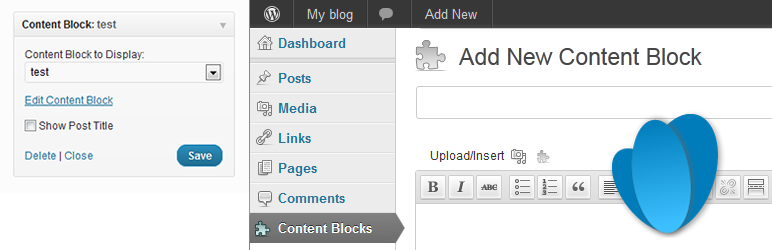
To add content to a widget, drag it to the required position in the sidebar and select the title of the custom post in the widget configuration.

Includes the following translations:

More translations are very welcome!

  1. First you will have to upload the plugin to the /wp-content/plugins/ folder.
  2. Then activate the plugin in the plugin panel.
    You will see that a new custom post type has been added called Content Block.
  3. Type some content for the widget. You can choose to either use the title to describe the content on the page, or to display it. Check ‘Show Post Title’ to display the title on the page.
  4. Go to ‘Appearance’ > ‘Widgets’ and drag the Content Block widget to the required position in the sidebar.
  5. Select a Content Block from the drop-down list.
  6. Check the ‘Show Post Title’ checkbox if you would like to display the title of your Content Block
  7. If you are experiencing issues with content being added automatically to your posts (Social media sharing buttons for instance), check the ‘Do not apply content filters’ checkbox. Use this with caution!
  8. Click save.

سوالات متداول

Why can’t I use the default text-widget?

Of course you can always use the default text widget, but if you prefer to use the WYSIWYG editor or if you have multiple editors and you don’t want to give them administrator rights, it is recommended to use this plugin.

How can I show the content bock on a specific page?

It is recommended to install the Widget Logic plugin, this will give you complete flexibility on widget placement.

How can I display the featured image in the widget?

This plugin has built-in support for the featured image functionality on the edit screen. Note that featured image will not be resized, so you will have to make sure it is the right size when uploading or restrict the image size via the stylesheet.

My social sharing plugin adds buttons to all the Content Block areas

If your social media sharing plugin adds buttons to the widget areas you could check the ‘Do not apply content filters’ checkbox. Note that when this is done, WordPress will also stop adding paragraph tags to your text, so use this setting with caution. It is much better to ask the developer of the social media sharing buttons plugin to correctly use the content filters (see http://pippinsplugins.com/playing-nice-with-the-content-filter/ for more information on this). If you are embedding your content block with the shortcode, add the following: suppress_content_filters="yes"

The featured image is not displayed when using the shortcode

Currently the shortcode function only outputs the post content and title of the content block, future support for displaying the attached featured image is being considered.

Can I change the output of the content blocks?

Yes, you can create your own template for the content blocks, you can do so by adding a file named custom-post-widget.php to your theme folder. More information about this can be found in this support topic

In these Gists you can find examples of templates for shortcodes and for widgets

I have a feature request

Please post your feature request on the support forum
These new features are on the to-do list:

  • Display the content block featured image when using the shortcode
  • Front-end editing of the content blocks
  • Visual Composer integration
  • Show the shortcode on the “View all Content Blocks” list view
How can I make advanced changes to the widget layout?

You can create your own widget template and upload this to your theme folder. See this support topic for more information about this feature.

Can I make the post type public?

You can make the post type public by adding the following code to your theme’s functions.php file:
function filter_content_block_init() {
$content_block_public = true;
return $content_block_public;
}
add_filter(‘content_block_post_type’,’filter_content_block_init’);

Alternatively you can use this third-party plugin.

Post ID’s confuse me, can I use the post slug for embedding a content block?

Yes, v2.6 now gives you the option to use the content block’s url slug in the shortcode. Use the following syntax for doing this: [content_block slug=my-content-block].
Note that if you ever change the slug of a content block, the embedding no longer works. Therefore I recommend using the post ID instead (which never changes).

Can I specify a custom class for the embedded content blocks?

By default the shortcode adds a div around the content block with the class content_block. If you like, you can change this class by adding it to the shortcode: [content_block id=198 slug=our-wordpress-plugins class=my-class]

How can I embed a content block in my template file using php code?

You can use the do_shortcode function for this: echo do_shortcode('[content_block id= ]');

See https://codex.wordpress.org/Function_Reference/do_shortcode for more information on this function.

The plugin is not working for me

Please create a support topic in the forum: https://wordpress.org/support/plugin/custom-post-widget

I love your plugin! What can I do to help?

Creating and supporting this plugin takes up a lot of my free time, therefore I would highly appreciate it if you could take a couple of minutes to write a review. This will help other WordPress users to start using this plugin and keep me motivated to maintain and support it. Also, if you have a twitter, Facebook or Google+ account, it would be fantastic if you could share the link to this plugin!

×
نظری برای این آیتم موجود نیست.
0 0 رای ها
امتیازدهی
اشتراک در
اطلاع از
0 نظرات
قدیمی‌ترین
تازه‌ترین بیشترین رأی
نسخه حجم فایل SHA256 تغییرات دانلود
3.4.1 162 کیلوبایت -
دانلود
×
★★★★★
★★★★★
4.9 /5 (80 نظر)

قیمت:

رایگان

نگارش

3.4.1

آخرین انتشار

10 اردیبهشت 1405

آخرین بروزرسانی

4 ماه پیش

نصب های فعال

10,000+

نگارش وردپرس

وردپرس 4.6+

تست شده از نسخه

وردپرس 6.9.4

نگارش PHP

-

نسخه ها

1 نسخه




