
HTML Page Publisher

HTML Page Publisher

توسط

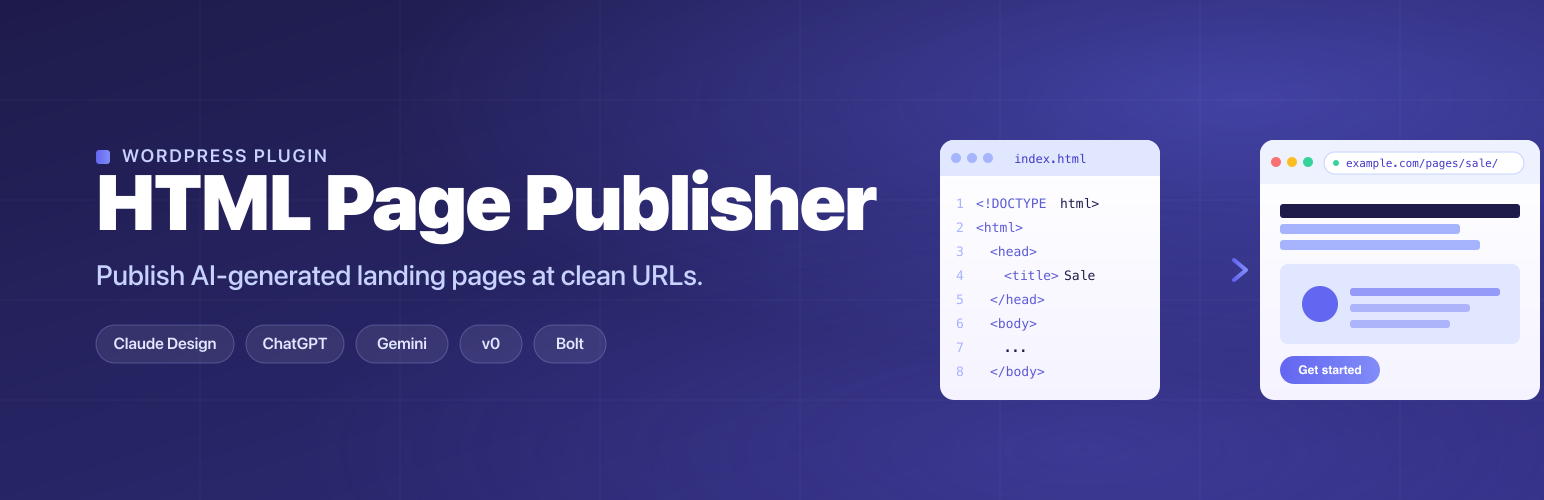
HTML Page Publisher lets you drop a standalone HTML file into WordPress and have it served as a landing page at a clean URL. Works with output from Claude Design and HTML exported from other AI tools like ChatGPT, Gemini, v0, and Bolt, and with any hand-written static HTML too. Perfect for sales collateral, one-pagers, lead-gen pages, and campaign microsites.

Key features

  • Simple admin UI: upload one HTML file + its image assets, get a public URL
  • Built-in HTML editor: edit a published page right in the dashboard with the native WordPress code editor (syntax highlighting), no FTP needed
  • Version history: every save snapshots the previous version; restore any earlier version with one click (restoring is itself undoable)
  • Image management: add, replace, or delete a page’s images in place — Replace keeps the original filename so existing references keep working
  • Automatic cleanup of AI-export wrappers: strips runtime code some AI HTML export tools inject so the published page is pure static HTML
  • Configurable URL prefix: default /pages/your-slug/, change to anything you like (e.g. /resources/, /guides/)
  • Optional subdomain routing: point sales.example.com at your site and pages appear at sales.example.com/your-slug/
  • Secure by default: nonce-protected forms, capability checks, path-traversal guards, and strict file-extension filtering
  • Extensible: use the htmlpp_sanitize_html filter to add cleanup rules for other AI export formats

Use cases

  • Publishing landing pages generated by Claude Design
  • Publishing HTML from ChatGPT, Gemini, v0, Bolt, and other AI tools
  • Sales collateral (rate cards, one-pagers, proposals)
  • Campaign landing pages and microsites
  • Rapid-publishing static HTML without touching the theme or FTP
  1. Upload the html-page-publisher folder to /wp-content/plugins/ (or install from Plugins Add New).
  2. Activate the plugin from the Plugins screen.
  3. Go to HTML Pages in the admin sidebar to upload your first page.
  4. (Optional) Visit HTML Pages Settings to change the URL prefix or configure a subdomain.

سوالات متداول

Where are uploaded pages stored?

In wp-content/uploads/html-page-publisher/<slug>/. Each page has its own directory containing an index.html and an assets/ folder for images. Version-history snapshots are kept separately in wp-content/uploads/html-page-publisher-backups/<slug>/.

How do I edit a page or change its images after publishing?

Open HTML Pages, click Edit on a page. You get the native WordPress code editor for the HTML, a Version History panel to restore earlier saves, and an Images & Assets panel to add, replace, or delete the page’s images without re-uploading the HTML. Use Replace (rather than uploading a new file) to swap an image while keeping the same filename, so existing assets/... references in your HTML keep working.

Can I lock down editing?

Yes. The standard DISALLOW_FILE_EDIT (or DISALLOW_FILE_MODS) constant in wp-config.php disables in-dashboard HTML editing and image changes here too, the same way it disables WordPress’s core file editor.

How do I use the subdomain feature?

Two steps:

  1. DNS: Add an A or CNAME record pointing your subdomain (e.g. sales.yourdomain.com) at the same server as your WordPress site.
  2. Web server: Configure your hosting to serve that subdomain from the same WordPress install. On shared hosting with cPanel this is typically an “addon domain” or “subdomain” option. On managed hosts, you may need to request it from support.

Then enter the hostname in HTML Pages Settings Subdomain. Pages will be served at https://sales.yourdomain.com/your-slug/ in addition to the regular prefix URL.

Is it safe to upload arbitrary HTML?

Only users with the manage_options capability (administrators by default) can upload pages. Uploaded HTML is served as-is, including any <script> tags it contains, so only upload HTML you trust. The plugin strips known runtime wrappers injected by some AI export tools but does not otherwise filter markup.

Will uninstalling delete my pages?

No. Uninstalling removes the plugin’s settings but leaves the uploaded pages in wp-content/uploads/html-page-publisher/ (and their version-history snapshots in wp-content/uploads/html-page-publisher-backups/) intact. Delete those folders manually if you want to remove them.

Does this work with caching plugins or a CDN?

Pages are served via a direct PHP readfile that happens before WordPress’s main query runs. Most page caches (WP Rocket, W3 Total Cache) won’t cache these URLs by default. If you want them cached at the CDN edge, add the URL pattern to your caching rules. They’re plain HTML with cache-friendly headers.

×
نظری برای این آیتم موجود نیست.
0 0 رای ها
امتیازدهی
اشتراک در
اطلاع از
0 نظرات
قدیمی‌ترین
تازه‌ترین بیشترین رأی
بازخورد (Feedback) های اینلاین
مشاهده همه دیدگاه ها
نسخه حجم فایل SHA256 تغییرات دانلود
1.2.1 42 کیلوبایت -
دانلود
×
بدون امتیاز

قیمت:

رایگان

نگارش

1.2.1

آخرین انتشار

1 خرداد 1405

آخرین بروزرسانی

4 هفته پیش

نصب های فعال

-

نگارش وردپرس

وردپرس 5.9+

تست شده از نسخه

وردپرس 7.0

نگارش PHP

PHP 7.4+

نسخه ها

1 نسخه




