
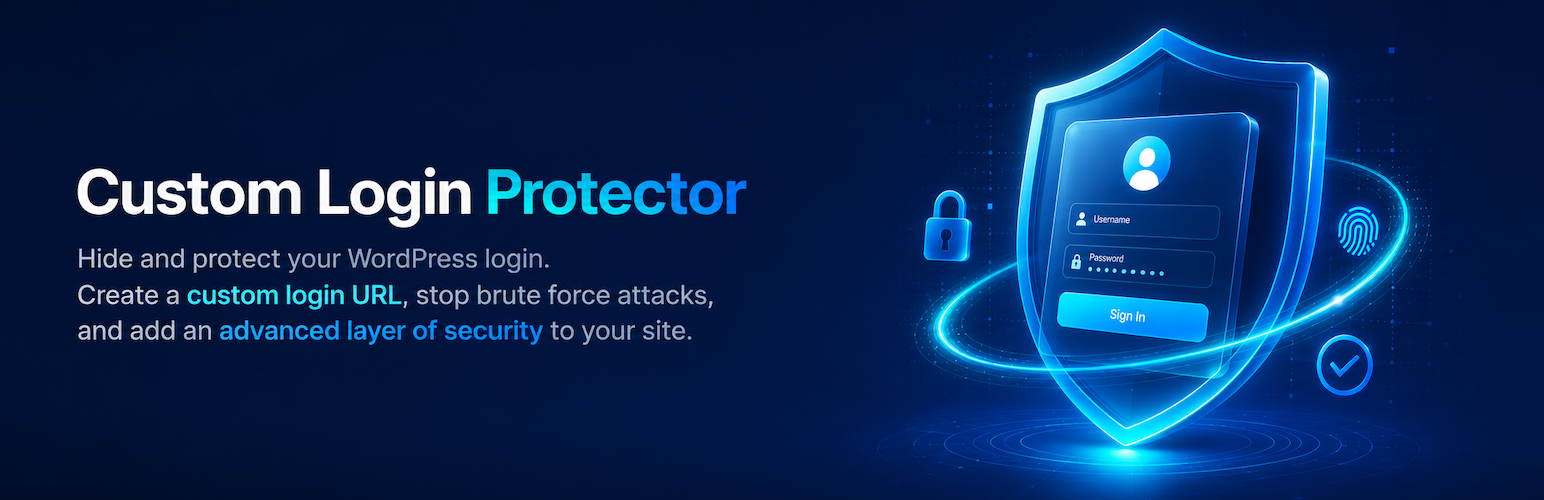
LevelNetwork Custom Login Protector

LevelNetwork Custom Login Protector

توسط

LevelNetwork Custom Login Protector is a lightweight yet powerful security and customization plugin for WordPress. It secures your website by hiding the default wp-login.php and wp-admin pages from unauthorized access, brute-force attacks, and malicious bots. In addition to security, it allows you to completely rebrand your login screen to match your identity.

Key Features

  • Hide Default Login: Change the default WordPress login URL to a custom, secret slug of your choice.
  • Block Unauthorized Access: Automatically redirect any direct attempts to access wp-login.php or the wp-admin directory (for non-logged-in users) to a specific URL (e.g., your 404 page or homepage).
  • Login Page Customization: Choose from 11 pre-designed layouts (e.g., Cyberpunk, Neumorphic, Frosted Glass, Geometric, Minimalist).
  • Custom Logo: Easily upload or select a custom logo to replace the default WordPress branding.
  • Custom CSS: Add your own CSS rules to further tweak the design and background images of the login page.
  • Lightweight: Optimized for performance, ensuring your site speed remains completely unaffected.
  1. Upload the levelnetwork-custom-login-protector directory to your /wp-content/plugins/ directory, or install it directly through the WordPress plugins screen.
  2. Activate the plugin through the ‘Plugins’ menu in WordPress.
  3. Navigate to Settings > Login Protector in your WordPress admin dashboard.
  4. Set your new Custom Login URL, choose your redirect slug for blocked attempts, and select your favorite layout.
  5. Save the settings.
  6. Important: Remember to bookmark your new login URL!

سوالات متداول

What happens if I forget my custom login URL and get locked out?

If you forget your custom login URL, you can easily regain access via FTP or your hosting control panel’s File Manager. Navigate to the wp-content/plugins/ directory and rename the folder levelnetwork-custom-login-protector to something else (e.g., levelnetwork-custom-login-protector-disabled). This will instantly deactivate the plugin and restore the default wp-login.php URL.

Do I need to update my permalinks after saving?

Yes. After setting a new login URL or changing an existing one, it is highly recommended to go to Settings > Permalinks and simply click the “Save Changes” button to safely flush the WordPress rewrite rules.

Is this plugin compatible with caching plugins?

Absolutely. However, to prevent login loops or cached nonces, you must ensure your new custom login URL slug is excluded from being cached in your caching plugin’s settings (e.g., WP Rocket, LiteSpeed Cache, W3 Total Cache).

×
نظری برای این آیتم موجود نیست.
0 0 رای ها
امتیازدهی
اشتراک در
اطلاع از
0 نظرات
قدیمی‌ترین
تازه‌ترین بیشترین رأی
هیچ نسخه‌ای برای این آیتم موجود نیست.
بدون امتیاز

قیمت:

رایگان

نگارش

آخرین انتشار

21 خرداد 1405

آخرین بروزرسانی

2 ماه پیش

نصب های فعال

-

نگارش وردپرس

وردپرس 5.4+

تست شده از نسخه

وردپرس 7.0

نگارش PHP

PHP 7.2+

نسخه ها

0 نسخه




