
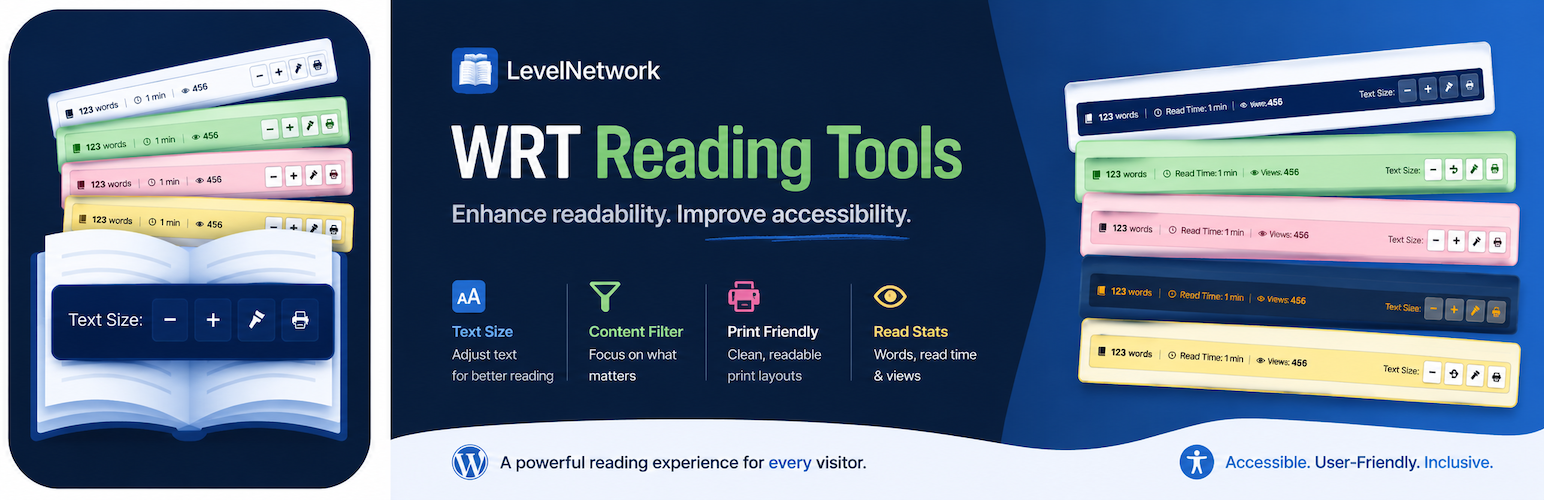
LevelNetwork WRT Reading Tools

LevelNetwork WRT Reading Tools

توسط

LevelNetwork WRT Reading Tools enhances your content by adding a professional and informative bar, providing valuable metadata and accessibility tools directly within your posts and pages.

Core Features:

  • Word Count: Automatically calculates and displays the total word count based on the main filtered content block (the_content). Provides the most relevant count for the displayed text.
  • Estimated Reading Time: Shows reading time in minutes, calculated using a configurable WPM setting (Default: 200 WPM) based on the filtered content word count.
  • Post View Counter:
    • Reliably tracks and displays post/page views via AJAX with secure nonces and cookie tracking.
    • Configurable Cookie Expiry (Default: 6 hours).
    • Global & Per-Post Start Value options to set an initial count.
    • View Reset button in the post editor metabox.
    • (Note: Disabled by default, must be enabled in settings).
  • Text Font Resizer: Includes +/- buttons and an optional Reset button. Remembers user preference via LocalStorage.
  • Accessibility & Utility Buttons:
    • Optional Contrast/Night Mode toggle with multiple icon choices. Remembers user preference.
    • Optional Clean Print button using a configurable selector to print only the main content area.

Extensive Customization & Compatibility:

  • Display Control:
    • Show bar on: Only Posts (Default), Only Pages, Both, or Manual Placement Only (disables automatic insertion).
    • Automatically excluded from the homepage.
    • Position: Above (Default) or Below content.
    • Mobile Visibility: Option to show (Default) or hide on mobile.
  • Component Toggle: Individually enable/disable Word Count, Reading Time, View Counter, Font Resizer (+/-), Font Reset Button, Contrast Button, and Print Button.
  • Theme Compatibility & Exclusions: Settings for CSS selectors allow you to target specific content areas and exclude unwanted elements (like injected ads, related posts, or author boxes) from being counted, resized, or printed.
  • Visual Styling:
    • Choose from 50 built-in Color Palettes with live admin preview!
    • Select your preferred icon for the Contrast Mode button (with preview).
  • Shortcode: [lnwrt_only_tools] available to manually display only the action buttons group.
  • Professional & Lightweight: Clean design, uses WordPress Dashicons, CSS Variables.
  • Localization Ready: Fully translatable.

Provide richer insights, better accessibility, and more control using LevelNetwork WRT Reading Tools!

  1. WordPress Admin: Plugins > Add New Plugin > Upload Plugin > Choose levelnetwork-wrt-reading-tools.zip > Install Now > Activate.
  2. FTP: Upload levelnetwork-wrt-reading-tools folder to /wp-content/plugins/ > Activate in Plugins menu.
  3. Configuration: Go to Settings > Reading Tools. Configure all options, especially “Target Selectors”. Enable desired components & buttons (View Counter is off by default).

سوالات متداول

How do I prevent the plugin from counting or resizing ads, related posts, or author boxes?

Go to Settings > Reading Tools > Target Selectors and use the “Exclude Selector CSS” field. Enter the CSS classes or IDs (separated by commas, e.g., .ad-banner, .related-posts, #author-box) of the elements you want the plugin to completely ignore.

The Font Resizer (+/- buttons) doesn’t work.

Go to Settings > Reading Tools > Target Selectors. Ensure the “Font Resizer Target” field contains the correct CSS selector for your theme’s main text container (e.g., .entry-content).

The Print button prints the wrong content or the whole page.

Go to Settings > Reading Tools > Target Selectors. Ensure the “Clean Print Target” field contains the correct CSS selector for the specific content block you want to print.

The bar appears in unwanted places (widgets, etc.).

Go to Appearance > Customize > Additional CSS in your WordPress dashboard to hide the bar in specific locations using standard CSS. Use browser “Inspect Element” to find a unique parent selector for the unwanted area (e.g., #sidebar .widget .lnwrt-reading-tools-bar { display: none; }).

View Counter shows 0 or doesn’t update?
  1. Enable It: Check “View Count” under Settings > Reading Tools > Components & Options.
  2. Clear Caches: Crucial! Clear all caches (plugin, server, CDN, browser) and test in an Incognito window.
  3. Admins Ignored: Logged-in admins are not counted. Test logged out.
  4. Cookie Expiry: Wait for the cookie (check setting) or use Incognito.
  5. Check Console: Look for JS errors or failed AJAX requests (F12 > Console / Network).
How do I reset the View Count?

Edit the post/page, find the “WRT View Stats” metabox, click “Reset”. The count updates after refresh.

How does the “Start Value” for views work?

Sets the base number before the first view is counted. Example: Start Value 100 -> first visitor makes count 101. A per-post override (set via metabox before first view) takes precedence.

Can I change the Reading Speed (WPM) / View Count Cookie Duration?

Yes, under Settings > Reading Tools > Components & Options.

Why might the Word Count/Read Time seem slightly off compared to other tools?

By default, the calculation is based on the text content after WordPress filters have run. For perfect accuracy, use the “Word Count Target” and “Exclude Selector CSS” settings to define exactly which areas should and shouldn’t be counted.

What shortcodes are available?
  • [lnwrt_only_tools]: Displays only the interactive buttons (Resizer, Reset, Contrast, Print) based on enabled settings. Useful for manual placement. Requires plugin assets (JS/CSS) to be loaded on the page.
×
نظری برای این آیتم موجود نیست.
0 0 رای ها
امتیازدهی
اشتراک در
اطلاع از
0 نظرات
قدیمی‌ترین
تازه‌ترین بیشترین رأی
هیچ نسخه‌ای برای این آیتم موجود نیست.
بدون امتیاز

قیمت:

رایگان

نگارش

آخرین انتشار

21 خرداد 1405

آخرین بروزرسانی

2 ماه پیش

نصب های فعال

-

نگارش وردپرس

وردپرس 5.4+

تست شده از نسخه

وردپرس 7.0

نگارش PHP

PHP 7.4+

نسخه ها

0 نسخه




