
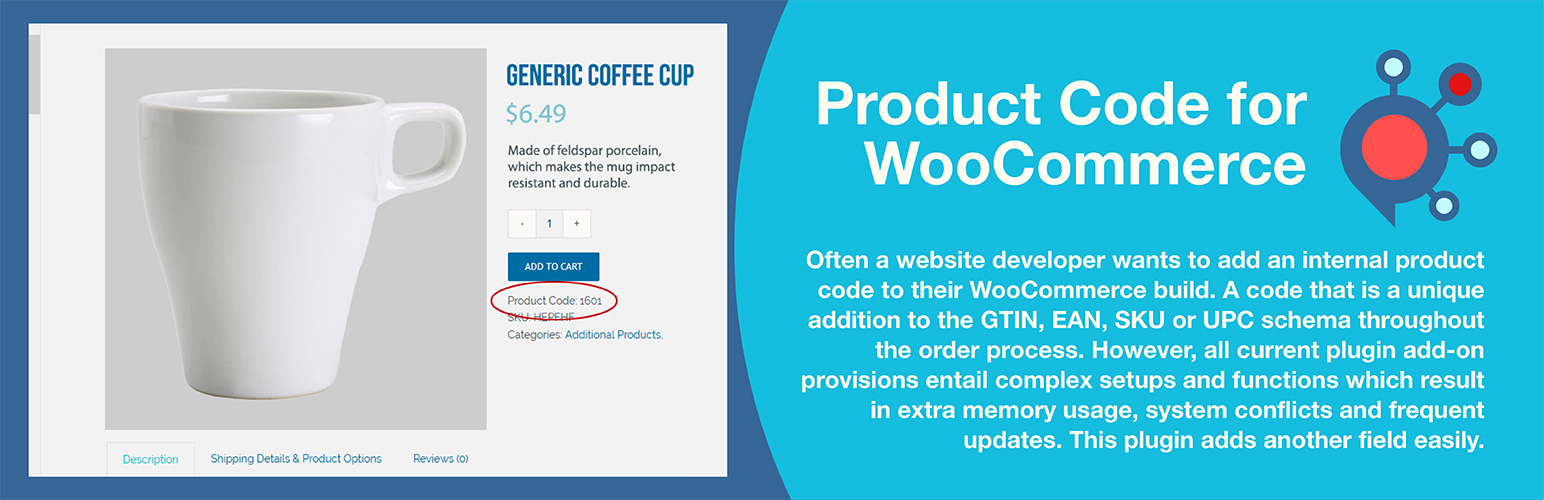

This user-friendly plugin is what many website designers, developers, and business owners look for when they need an additional product code field in WooCommerce. It is often used as an inventory control number, an internal stock number, or a bin location. The plugin allows you to add a product identifier to each variable or single item in WooCommerce. The custom field value can be passed through during order fulfillment and referenced from each item ordered. The field value can be viewed on the user side or turned off if desired.
Throughout the order process, a unique product code is often added in addition to the GTIN, EAN, SKU, and UPC. However, all current plugins that might address this need require complex setups and functions, resulting in increased memory usage, system conflicts, and frequent updates. This plugin eliminates all those hurdles by providing a simple solution without the bloat, without sacrificing the options WooCommerce doesn’t offer.
WooCommerce’s built-in product fields lack the flexibility many businesses require. This plugin fills those gaps with granular display controls—show codes to admins only, hide them on product pages while keeping them in cart and checkout, or hide them from customers entirely while preserving visibility on invoices and packing slips. A secondary code field accommodates businesses that need both a customer-facing code and an internal reference, such as a bin location. Customizable labels let you rename fields to match your workflow, and the option to hide empty fields keeps your product pages clean.
Simply install, enter your product codes within each product post (variation or single), and publish. There is nothing more to it than that! If you don’t want customers to see the unique product code, you can disable the user-side display in setup. The field label can also be easily changed in setup to read ISBN, Bin Number, Stock Number, EAN, or JAN. Any value can be created and entered as a single new field.
The added fields are compliant with mappable data import and export schemes. This exact compliance allows the fields to be included in a Google Merchant product feed using custom mapping. It also supports Schema.org/Product with an option to choose the property name (GTIN, EAN, UPC, ISBN) to set inside the structured data.
You can also search product codes using the WordPress default search from the user side and from the administrator WooCommerce product list page on the backend. It is compatible to search product codes using the popular Relevanssi, SearchWP and, Ajax Search Pro.
Translations
All text strings use WordPress translation functions. Includes complete translations for English, Spanish, French, German, Portuguese, Dutch, Polish, Finnish, and Russian. Any edits to the PO files or additional languages are welcome.
Donations
If this free effort assists you, please consider making a small donation from the main plugin page, found on the lower right. All funds assist orphans in destitution.
Version Changes
As of version 1.3.1, the Product Code primary field is now displayed by default in the WooCommerce product panel, and can be toggled off from the top tab dropdown if desired. If your second Product Code field is activated from settings, it will appear to the right of the Product panel. Additionally, the Product Code primary field now appears in the WooCommerce Quick Edit panel. Turn on the second Product Code, which will display after the primary field in the Quick Edit panel. Make sure you clear your caches (website and browser) if you are updating from the previous plugin.
As of version 1.4.1, an administrator can choose to hide the default and secondary product code from the user-side product posts while the other display injections still work (checkout, cart, and receipts).
Technical Details for Release 1.5.11
Load time: 0.294 s; Memory usage: 3.63 MiB
PHP up to tested version: 8.3.29
MySQL up to tested version: 8.4.7
MariaDB up to tested version: 12.1
cURL up to tested version: 8.18.0, OpenSSL/3.6.0
PHP 7.4, 8.0, 8.1, 8.2, and 8.3 compliant. Not tested on 8.4 yet.
Using in Multisite Installation
- Extract the zip file contents into the wp-content/mu-plugins/ directory of your WordPress installation. (This is not created by default. You must create it in the wp-content folder.) The ‘mu’ does not stand for multi-user as it did for WPMU; it stands for ‘must-use,’ as any code placed in that folder will run without needing to be activated.
- Access the Plugins settings panel named ‘Product Code for WooCommerce’ under options.
- Enter the Product Code from either Variable or Simple products under the SKU.
Configuration with Relevanssi plugin
- Open up Indexing tab from Settings->Relevanssi page.
- From the Post Type select “Product” and “Product Variation”.
- From the Custom fields dropdown select “Some” and add custom fields “_product_code” and “_product_code_second” and save.
- Move to Searching tab and unselect checkbox “Respect exclude_from_search” and save.
- Access Indexing tab, click button “Build the Index” and save.
Configuration with SearchWP plugin
- SearchWP requires the SearchWP WooCommerce Integration addon.
- Open up Settings Tab from Settings->SearchWP page.
- Add post type “Product” if not added by clicking “Add Post Type”.
- Click “Add Attributes”, select “Custom Fields” and add “_product_code” and “_product_code_second” fields from the dropdown box. Move slider to right on both toward “Max”.
- Lastly click “Save Engines” and then click “Rebuild Index”.
Configuration with Ajax Search Pro plugin
- Open up “Ajax Search Pro” settings page via admin menu.
- Create/Edit the search instance.
- Add “Products[product]” and “Variation[product_variation]” from the post types list.
- Add “_product_code” and “_product_code_second” fields from the custom fields list and save.
- If you have selected “Index table engine” for the search engine then index it again.






