
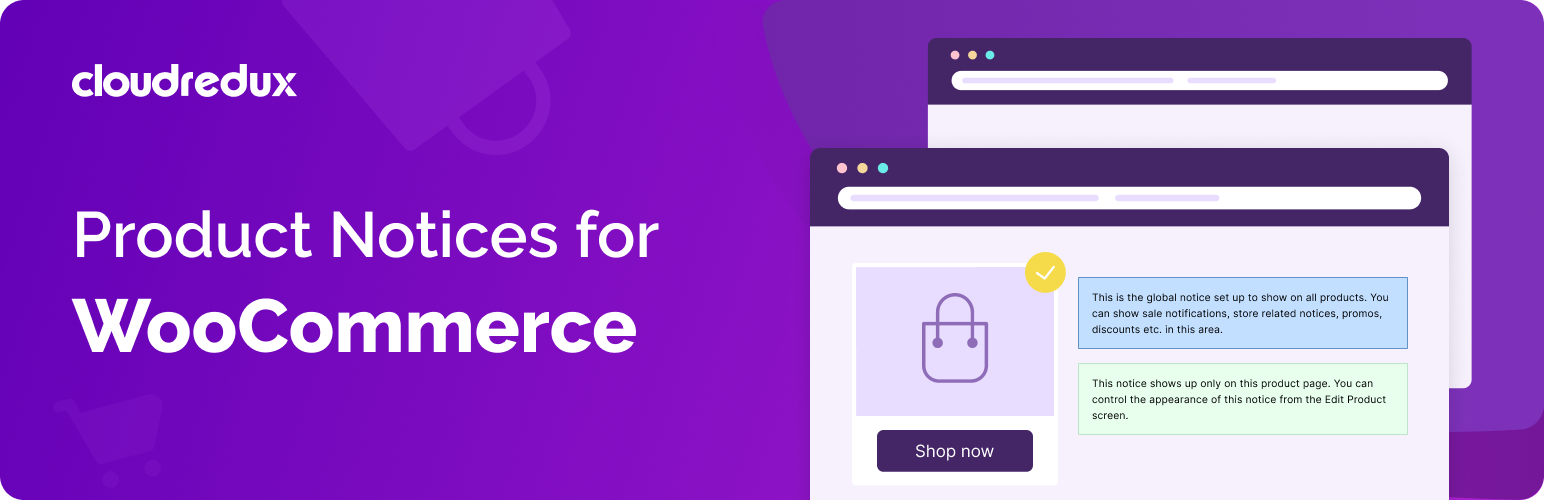
Product Notices for WooCommerce

Product Notices for WooCommerce

توسط

Better showcase and display notices on your WooCommerce store

Ever wanted to show notifications, alerts, announcements or general notices on the product pages of your website? Product Notices for WooCommerce makes it a breeze for you!

Now, make your notices on your eCommerce websites stand out more than ever! With the new Product Notices for WooCommerce plugin, highlight the most important announcements or showcase discounts on all or on any product page.

With its two customization options:

  1. Global Notices– These are the notices that you can highlight across your store. This feature allows you to set up notices to show on all the products. It may be some kind of market announcement, alert, or for any other criteria.

  2. Per-Product Notices-This feature allows you to show notices on a per-product basis. The notice may be in form of promo, discount, or any other criteria. This feature also allows you to hide the global notice from the page, thus allowing custom store notices an easy task.

Setting up more than one Global and Per-Product Notices

If you wanted to show multiple notices, for instance, trying to show more than one product promo/discount, update, etc.

  1. You can find the Product Notices menu by navigating to the Dashboard in WordPress.
  2. Click on the Add New button and enter the desired content in the Notice Text field.
  3. The Display Rules tab allows you to set up the product notice to show on all products in the store or on certain categories, tags, and products.
  4. You can select from a set of default or custom appearance styles to control how your notice appears on product pages using the Notice Appearance dropdown.

Setting up Global Notice

In order to set up a Global Notice for the products on your store:

  1. Navigate to the Settings menu under WooCommerce on the WordPress Dashboard.
  2. Click on the Product Notice tab and use the settings field to set up the product notice to show on all the products in the store.
  3. Choose from a set of default appearance styles to set-up how your notice shows up on the product pages using the Notice Appearance dropdown.

Setting up Per-Product Notice

If you would rather show a notice, alert, announcement, etc. only on one or more and not all the products in your store, the plugin allows you to do just that.

  1. Head to the Edit Product screen for a product and look for the Product Notice/Information metabox.
  2. Add the desired content in the Notice Text field.
  3. Choose from a set of default appearance styles to set-up how your notice shows up on the page using the Notice Appearance dropdown.

Display notices effortlessly, with Shortcodes

The plugin also offers built-in shortcodes to display notices on the website. The shortcode allows you to display both global and a specific-product notice on a desired page or post.

  1. Use [crwcpn-notice] shortcode to display the global notice as configured in the plugin settings.
  2. To show the product notice on a different location on the product page, you can use the shortcode with an additional attribute type. So, the shortcode [crwcpn-notice type="product"] will display product notice on the product page at the desired location.
  3. If you wish to show a product specific notice on a different page, post or elsewhere on the website, you can use the id attribute of the shortcode to do so. Using this [crwcpn-notice type="product" id="123"] will display the notice configured for the product with ID 123 on desired location on the website.

Log in to your WordPress Dashboard, navigate to the Plugins menu and click Add New. In the search field type “Product Notices for WooCommerce” and click on Search Plugins. Once you’ve found the plugin you can install it by simply clicking “Install Now”.

Or you can follow the steps given below:

  1. Upload the entire product-notices-woocommerce folder to the /wp-content/plugins/ directory.
  2. DO NOT change the name of the product-notices-woocommerce folder.
  3. Activate the plugin through the ‘Plugins’ menu in WordPress.
  4. Once activated, visit the Product Notices tab under WooCommerce > Settings.
  5. Set up the plugin options as required.

سوالات متداول

How do I set up a global notice to show on all products?

Global Notice shows up on all the products on your store. In order to set up a global notice, navigate to the Settings menu under WooCommerce on the WordPress Dashboard. Click on the Product Notice tab and use the settings field to set up the product notice that you intend to show on all the products in the store.

Can I set up a notice to only show on one or more products?

If you do not wish to display the notice on all the products, you can set up notice on per-product basis. Head to the Edit Product screen for any product and look for the Product Notice/Information meta box and add the desired content in the Notice Text field. Choose from a set of default appearance styles to set up how your notice shows up on the page using the Notice Appearance dropdown.

Can I show both Global and Per-Product notice on a product page?

Sure, if you have a configured a global notice to show on products and would like to display additional information, promo, discount notice or any other type of notice on a product page; you can simply head straight to the Edit Product screen for a product and add the notice. In this case, both the Global and Per-Product notice would be displayed on that product page.

Can I disable global notice for one or more products?

If you want some of the product pages on your store to not display the global notice that you have set up, just head to the Edit Screen for the product(s) and locate the Global Notice metabox in the sidebar. Check that box to hide the global notice on that product page.

Is HTML supported in the notice text field?

Yes you can use standard HTML tags to customize and set-up notices to your liking!

Are shortcodes supported in notices?

Sure, feel free to use any shortcode in the notice text field and it would output just fine on the frontend. Be careful while using shortcodes that output highly dynamic content. This may lead to performance bottlenecks or other failure.

Hey, I use Elementor [or any page builder]. Does the plugin have built-in shortcode(s) that I can use?

We received a lot of requests for this feature and tada, it is here. You can use [crwcpn-notice] shortcode to display global notice as configured in the plugin settings. Use [crwcpn-notice type="product"] to show product notice and you can also supply id attribute if you wish to display notice created for a specific product like this [crwcpn-notice type="product" id="123"].

×
نظری برای این آیتم موجود نیست.
0 0 رای ها
امتیازدهی
اشتراک در
اطلاع از
0 نظرات
قدیمی‌ترین
تازه‌ترین بیشترین رأی
بازخورد (Feedback) های اینلاین
مشاهده همه دیدگاه ها
نسخه حجم فایل SHA256 تغییرات دانلود
1.3.4 57 کیلوبایت -
دانلود
×
★★★★★
★★★★★
5.0 /5 (7 نظر)

قیمت:

رایگان

نگارش

1.3.4

آخرین انتشار

15 اردیبهشت 1405

آخرین بروزرسانی

2 ماه پیش

نصب های فعال

800+

نگارش وردپرس

وردپرس 5.2+

تست شده از نسخه

وردپرس 6.8.5

نگارش PHP

PHP 7.2+

نسخه ها

1 نسخه




