
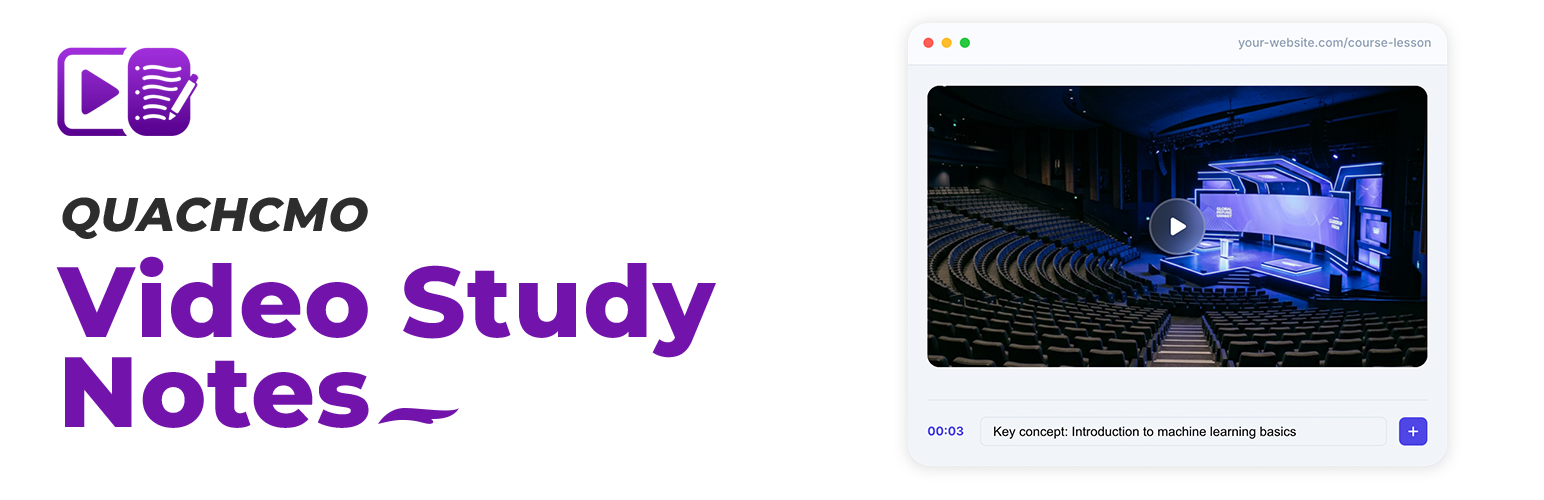

QuachCMO Video Study Notes transforms passive video watching into an active learning experience.
📺 Watch the Demo
Whether you are an educator, a student, or a content creator, this plugin allows you and your users to take notes directly on embedded videos.
Each note is automatically timestamped, creating an interactive index. Clicking a note jumps the video player to that exact moment, making review sessions incredibly efficient.
🚀 Experience it live
Key Features
- Timestamped Note-Taking — Notes are linked directly to the video timeline.
- Click-to-Seek — Navigate the video instantly by clicking your notes.
- Focus Mode — Distraction-free learning with a full-screen theater view.
- Video Gallery — Showcase multiple learning modules in a beautiful video library.
- AJAX Auth — Seamless login/registration popup without leaving the video.
- Flexible Layouts — Choose between Stacked (above-below) or Side-by-Side views.
- Export Options — Save notes as Markdown, TXT, or copy directly to clipboard.
- Guest Notes — Option to allow or restrict note-taking to logged-in users.
- Gutenberg Block — Native block editor support with live preview.
Usage
Use the shortcode [quacvist_player video="VIDEO_ID"] in any post or page.
Display a gallery of all your lessons with [quacvist_gallery].
External services
This plugin utilizes the Vimeo API (OEmbed) to enhance your experience.
- Vimeo OEmbed API — We send video URLs to Vimeo’s OEmbed endpoint to automatically retrieve video metadata (such as titles and thumbnails) when you add or display videos. This ensures your learning library looks professional without manual data entry.
- Vimeo Terms of Service: https://vimeo.com/terms
- Vimeo Privacy Policy: https://vimeo.com/privacy
Support & Contact
For support, feedback, or inquiries, please contact the author at admin@quachcmo.com. We are committed to maintaining this plugin and ensuring a great user experience.






