
Raptor Global Add-Ons & Upsells for WooCommerce

Raptor Global Add-Ons & Upsells for WooCommerce

توسط

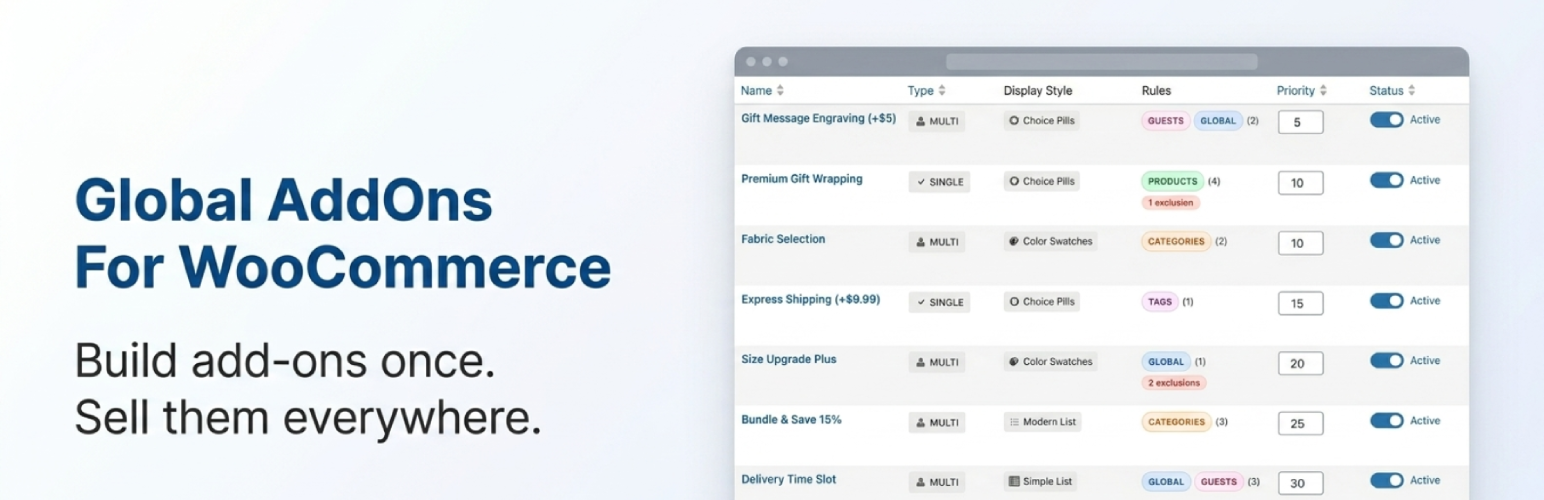
Global Add-Ons lets you build product add-ons once and show them on the products you choose. No more editing every product by hand.

Gift wrapping, personalization fields, priority processing, upsells, bundle options. Create each add-on a single time, then use smart rules to decide exactly where it appears on your store.

Your add-ons live in one place. Your rules stay consistent. Your store stays tidy.

See it in action

What you can do

  • Create unlimited add-on products, each with one option or many
  • Assign add-ons to all products, specific categories, tags, user roles, or individual products
  • Combine conditions using rule groups (AND within a group, OR across groups)
  • Choose from five display styles to match your theme
  • Control where each add-on appears on the product page
  • Set the display order when multiple add-ons show together
  • Works cleanly with the WooCommerce cart, checkout, and orders

Display templates

  • Choice Pills: compact pill-shaped buttons, great on mobile
  • Simple List: classic checkboxes or radio buttons
  • Option Cards: visual card grid with space for details (Pro)
  • Modern List: enhanced list with product images (Pro)
  • Color Swatches: circle swatches for color options (Pro)

Perfect for

  • Gift wrapping, gift messages, and packaging upgrades
  • Personalization, engraving, and custom printing
  • Priority processing and rush shipping
  • Accessory bundles and cross-sells

Free features

  • Unlimited add-on products
  • Assign to all products, product categories, or guest users
  • Rule groups with AND logic (single group)
  • Choice Pills and Simple List display templates
  • Single and multi-select options
  • Priority-based display ordering
  • Full cart and checkout integration
  • Customizable colors, borders, and labels
  • Import and export your add-ons, rules, and settings as JSON

Pro features

Pro is optional. Everything listed under Free works without a license.

  • Assign to specific products, product tags, user roles, or individual users
  • Multiple rule groups with OR logic. For example: “show to guests on Electronics, or to admins store-wide”.
  • Exclusion rules to skip specific products or categories
  • Option Cards, Modern List, and Color Swatches templates
  • Tooltips on add-on options for extra guidance
  • Priority support

Ready to upgrade? Get Pro here: https://checkout.freemius.com/plugin/22559/plan/37780/

Quick Start

Create your first add-on in five steps:

  1. Go to Global Add-Ons > Add-Ons and click Add New Add-On.
  2. Give it a clear name (e.g. Gift Wrapping).
  3. Set Product type to Global Add-On.
  4. Add one or more variations with prices (e.g. Standard $3, Premium $7), or use single-option mode for a flat add-on.
  5. Click Manage Rules and choose where it should appear (e.g. All products, a category, specific products).

Save, and your add-on will show on matching product pages right away.

Troubleshooting

Add-ons don’t appear on product pages

  • Make sure the add-on product is Published (not draft).
  • Check that the assignment rules match the product (correct category, product, tag, or All products).
  • If you’re using Pro, check that no exclusion rule is blocking the add-on.
  • Clear your site cache and your browser cache after changes.

Color swatches don’t show

  • Set a Swatch Color for each variation in the Variations tab.
  • Variations without a color are hidden on purpose. Add a color to make them appear.

Prices don’t update on the product page

  • Some themes have sticky Add to Cart bars that override the price. The plugin updates the common ones automatically (Flatsome, GeneratePress Premium, Astra Pro, Elementor Pro). If yours is different, let us know.
  • Clear any page-cache or object-cache after saving add-on prices.

Layout or styling looks off

  • Go to Global Add-Ons > Settings to adjust colors, borders, and labels.
  • Resave the add-on product after changing the Display Template so the new template loads.

Add-ons conflict with my theme or another plugin

  • Temporarily switch to a default theme (Twenty Twenty-Four) to check if it’s theme-related.
  • Deactivate other plugins one by one to identify a conflict.
  • If you find a conflict, please contact support with the theme or plugin name so we can investigate.

External Services

This plugin connects to a third-party service called Freemius (freemius.com) to handle licensing and Pro updates, and to receive optional opt-in anonymous usage statistics. This is how Pro licenses stay activated and how you receive Pro update notifications.

What is sent:

  • Your site URL
  • The admin email you entered during activation (only when you opt in to the Freemius connect prompt, or when you activate a Pro license)
  • The plugin version and activation status

What is never sent:

  • Customer information, order data, product data, or add-on content
  • Anything about your store’s shoppers

When it is contacted:

  • During plugin activation (only if you opt in to the connect prompt)
  • During Pro license activation, deactivation, and renewal checks
  • When checking for Pro updates
  • Low-frequency background health pings

Useful links:

  • Freemius Terms of Service: https://freemius.com/terms/
  • Freemius Privacy Policy: https://freemius.com/privacy/

If you are on the free version and skip the opt-in connect prompt during activation, no information is sent.

From the WordPress admin (recommended)

  1. Go to Plugins > Add New and search for Raptor Global Add-Ons & Upsells for WooCommerce.
  2. Click Install Now, then Activate.
  3. Open Global Add-Ons in the admin menu to start creating add-ons.

Upload manually

  1. Download the plugin ZIP.
  2. Go to Plugins > Add New > Upload Plugin, choose the ZIP, and click Install Now.
  3. Click Activate.

Requirements

  • WordPress 6.1 or later
  • WooCommerce 7.0 or later
  • PHP 7.4 or later

سوالات متداول

How do I create a global add-on?

Go to Global Add-Ons > Add-Ons and click Add New Add-On (or Products > Add New and set the product type to Global Add-On). Add variations with prices, then click Manage Rules on the add-on to choose where it appears.

What’s the difference between a single add-on and a multi add-on?

A single add-on is one option at one price. Think of it as a simple yes/no extra, like Gift Wrapping $3. The customer either adds it or skips it.

A multi add-on gives the customer a choice between several options, each with its own price. For example, Gift Wrap with Standard $3, Premium $7, or Luxury $10.

Both use the same Global Add-On product type. To create a single add-on, set one price and leave the Variations tab empty. To create a multi add-on, add one or more variations with prices in the Variations tab.

Use single when you only need a yes/no extra. Use multi when customers benefit from choosing between tiers, styles, or levels.

Images: For single add-ons, upload the image using WooCommerce’s standard Featured Image box (top-right of the product editor). For multi add-ons, set an image on each variation inside the Variations tab. The image shows automatically on templates that display images (Choice Pills, Simple List, Option Cards, Modern List).

Can I assign add-ons to specific categories?

Yes. Free users can assign to all products, specific product categories, or guest users. Pro adds assignments to specific products, product tags, user roles, and individual users.

How do rule groups work?

Conditions inside a single group must all match (AND). If you add more groups, the add-on shows whenever any one group fully matches (OR).

For example: Group 1 = guest + Electronics category plus Group 2 = administrator role means the add-on shows to guests browsing Electronics, or to admins on any product.

Free supports a single group (AND). Multiple groups (OR logic) require Pro.

How do exclusions work?

Exclusions stop an add-on from appearing on specific products or categories, even when the assignment rules match. This is a Pro feature.

Can customers select multiple add-on options?

Yes. Each add-on can use either single selection (radio buttons) or multi-select (checkboxes). The Color Swatches and Modern List templates use a fixed selection mode.

Are add-on prices added to the product price?

Yes. The selected add-on price is added to the line total when the product is added to the cart, and shown clearly in the cart and checkout.

Does this work with variable products?

Yes. Global add-ons work with all WooCommerce product types that display a price: simple, variable, grouped, virtual, and downloadable.

Can I make an add-on required?

Add-ons are optional by default. If you need to enforce a selection, you can do so with custom code in your theme or a small snippet. Let us know and we can point you in the right direction.

Where do add-ons appear on the product page?

You can show add-ons before or after the Add to Cart button, after the product meta, after the short description, or after the full product content. Pick the position per add-on in the display settings when managing rules.

How do I change the order of add-ons?

Use the Sort Priority field on each add-on product. Lower numbers appear first. You can also change priority in bulk from the add-ons list.

How do Color Swatches work?

Color Swatches is a Pro template. Choose it as the display template, then set a Swatch Color on each variation (Variations tab). Variations without a color are hidden on the frontend on purpose. Color variants show even if they have no price.

How do tooltips work?

Tooltips are short notes that appear when a shopper hovers over an add-on option (or taps it on mobile). They help explain what an option is for without cluttering the page.

To add a tooltip:

  1. Open the add-on product in the editor.
  2. For a single add-on, fill in the Tooltip Text field.
  3. For a multi add-on, expand a variation on the Variations tab and fill in the Description field.
  4. Save.

A “?” icon appears next to the option on the product page. Hovering or tapping the icon reveals your tooltip. Tooltips work across all five display templates.

Tooltips are a Pro feature.

Can I customize how add-ons look?

Yes. Go to Global Add-Ons > Settings to set the primary color, price color, border style (sharp, rounded, or pill-shaped), and the label shown next to free add-ons.

Is there a limit on how many add-ons I can create?

No. Both the free and Pro versions let you create unlimited add-on products.

Can I import or export my add-on settings?

Yes. Global Add-Ons > Settings has an Import/Export section. Export your settings, add-ons, and rules as a JSON file for backup or to move to another site, then import it on the new site.

What happens if a customer doesn’t select an add-on?

Nothing. Add-ons are optional. The product can be added to the cart as usual, without any add-on selected.

How do I upgrade to Pro?

Visit the Pro checkout page: https://checkout.freemius.com/plugin/22559/plan/37780/

After purchase, you’ll receive a license key by email. Activate it from Global Add-Ons > Settings to unlock all Pro features instantly.

Is the plugin translation-ready?

Yes. All user-facing strings use WordPress’s translation functions. You can translate the plugin with Loco Translate, Poedit, or any other tool that works with .po / .mo files.

Does it work with WPML or Polylang?

Yes. Add-on assignments apply correctly on translated product pages. The plugin normalizes product IDs to the default language before checking rules.

Does it work with WooCommerce Subscriptions?

Yes. Add-on prices are applied to the initial subscription and are not double-counted on renewals, resubscribes, or plan switches.

Does it work with page builders (Elementor, Divi, Bricks, etc.)?

Yes. The add-on interface uses delegated event handlers, so it keeps working when a page builder re-renders the product form over AJAX.

Will it slow down my site?

No meaningful impact on your shoppers. Plugin styles and scripts only load on pages that actually show add-ons, and cart-related assets are skipped on the cart and checkout pages when no add-on items are present.

What happens when I deactivate or uninstall the plugin?

Deactivating the plugin stops add-ons from appearing on the frontend but keeps all your add-ons, rules, and settings in the database, so reactivating restores everything exactly as it was. Uninstalling the plugin removes the plugin files; to fully clean up your stored add-ons and rules, delete them from the admin before uninstalling.

Is any customer or order data sent to a third party?

No. Customer information, orders, and add-on content are never sent anywhere. The plugin does connect to a licensing service for activation and updates. See the External Services section below for the full picture.

×
نظری برای این آیتم موجود نیست.
0 0 رای ها
امتیازدهی
اشتراک در
اطلاع از
0 نظرات
قدیمی‌ترین
تازه‌ترین بیشترین رأی
بازخورد (Feedback) های اینلاین
مشاهده همه دیدگاه ها
هیچ نسخه‌ای برای این آیتم موجود نیست.
بدون امتیاز

قیمت:

رایگان

نگارش

آخرین انتشار

16 اردیبهشت 1405

آخرین بروزرسانی

2 ماه پیش

نصب های فعال

-

نگارش وردپرس

وردپرس 6.1+

تست شده از نسخه

وردپرس 6.9.4

نگارش PHP

PHP 7.4+

نسخه ها

0 نسخه




