
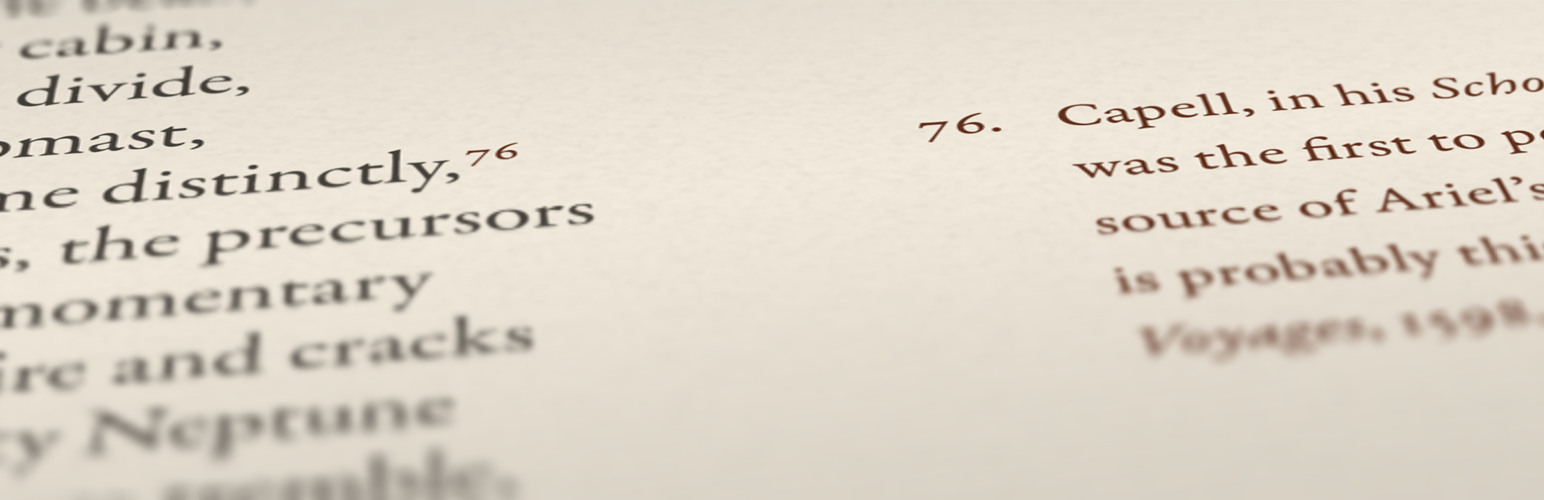

Side Matter turns footnotes into sidenotes, magically aligning each note in the sidebar next to its corresponding reference in the text. Unlike hyperlinked footnotes, sidenotes don’t require jumping down the page to follow up on each reference; instead, they perch humbly and accessibly beside the material to which they refer.
To use, place the Side Matter widget in your sidebar, then enclose sidenote text in a page or post using the [ref] shortcode, like so:
Here's the text to annotate.[ref]Note text goes here.[/ref]
To change default settings, use the Side Matter options page linked under the Appearance menu on your admin screen.
Styling Side Matter with CSS
Changing the appearance of Side Matter elements—for example, editing your notes’ typeface or indentation—requires using CSS. The simplest way to go about this is to install a custom CSS plugin that will preserve your rules even when Side Matter or your theme is updated. (Simple Custom CSS is a good example.)
Side Matter comes with a set of built-in class selectors. As an example, all sidenote and reference elements may be styled at once using the class side-matter. The following CSS will render all Side Matter elements in blue serif text:
.side-matter {
    color: blue;
    font-family: serif;
}
Notes and figures may be formatted with greater precision using element-specific class selectors. For example, the following CSS will render reference and list numerals in green and sidenote text in black:
a.side-matter-ref, ol.side-matter-list {
    color: green;
}

div.side-matter-text {
    color: black;
}
List of Class Selectors
Here is a full list of Side Matter class selectors and their uses:
a.side-matter-refselects the link elements that enclose in-text reference numerals. Use this class to modify the links’ colors, underline, etc.sup.side-matter-supselects thesup(superscript) elements that enclose in-text reference numerals. Use this class to modify the numerals’ typographic properties, such as size, offset, and font..widget_side_matter(note the underscores) selects the widget container element, which may be anasideor adiv.ol.side-matter-listselects theol(ordered list) element that encloses notes in the sidebar, including list numerals.li.side-matter-noteselects sidenoteli(list item) elements, including each note’s numeral.div.side-matter-textselects thedivelements that enclose sidenote text, but not sidenote list numerals. Use this to style sidenote text separately from numerals.
Each paragraph within a note is further wrapped in a p tag. However, as they’re generated outside the plugin, these p elements cannot be selected directly using the side-matter class. Instead, select them indirectly, e.g. div.side-matter-text > p.
Default CSS
Side Matter sets a few rules by default in the included stylesheet side-matter.css. These rules will generally defer to your theme stylesheet in the event of a conflict.
The first rule removes underlines from reference numeral links:
a.side-matter:link,
a.side-matter:visited,
a.side-matter:hover,
a.side-matter:active {
    text-decoration: none;
}
The second rule specifies a consistent cross-browser, cross-theme format for superscript figures:
sup.side-matter-sup {
    position: relative;
    top: -0.5em;
    vertical-align: baseline;
    font-size: 0.75em;
    line-height: 0;
}






