
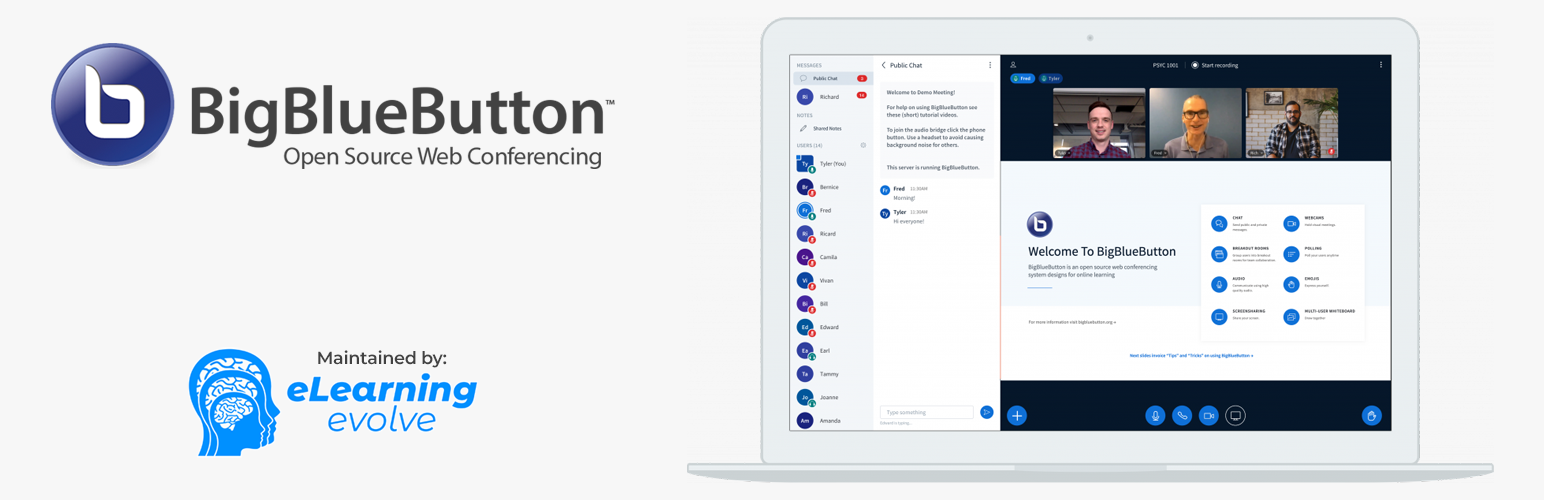
Virtual Classroom – Video Conferencing & Online Meeting with BigBlueButton

Virtual Classroom – Video Conferencing & Online Meeting with BigBlueButton

توسط

Dedicated Support
For quick support and assistance, please contact us here
https://elearningevolve.com/contact/

Virtual Classroom for WordPress integrates BigBlueButton into WordPress through which teachers can manage their virtual classrooms/video conferences right from the WP dashboard.

BBB stands as an open-source video conferencing solution crafted with the motto “Built For Teachers”. Equipped with all the essential features typical of a web conferencing platform, it goes beyond by facilitating active collaboration to enhance virtual classroom engagement. As an educator, BBB stands out as one of the top choices for online meetings. Explore all its features here: https://support.blindsidenetworks.com/hc/en-us/articles/360052738972-What-are-the-features-in-BigBlueButton-

Virtual Classroom for WordPress Features

Virtual Classroom for WordPress enables the user to create BBB rooms right from the WordPress dashboard. Once the room is created it can be added to any WordPress page through a simple shortcode. There is also a possibility to enter multiple rooms in the shortcode to let the user choose the room that they want to join.

The student can simply click Join from the page where the shortcode is added and enter the BBB room where the teacher can initiate a virtual classroom session.

After the session is over the plugin can also display the recording of the session on the same page so that the students can take the keynotes from the session later on.

Free Plugin Limitations

  • Add New option for BBB Rooms on backend is limited to only a maximum of 2 Rooms
  • Join room on the same page is not available. Only join in a new full screen window is supported

REQUIRED: Separate BigBlueButton Server

BBB software requires a separate hosting server that should be connected to our plugin. Please refer to our hosting guide for setup: https://elearningevolve.com/blog/hosting-virtual-classroom-for-wordpress/

This free plugin uses a BigBlueButton server provided by Blindside Networks for testing purposes only, is available “AS IS” without any warranty. It’s publicly accessible, and sessions and recordings may be open to anyone. Recordings on this testing server are not accessible and will be removed after 7 days, so do not rely on them.

Pro Version Features

There is also a Pro version available with this plugin that offers the below features:
* Moderators frontend Room management area
* Embed BigBlueButton Room on WordPress i.e join room on the same WP page
* Set a Countdown/Schedule for Room
* Fully White-label Virtual Classroom
* Limit the max allowed participants for a room e.g (5, 10, .. etc) both on a per room and per page basis. This can allow you to conduct a 1:1 or group session
* Upload your brand logo that is visible in the BBB room
* Customize the room background-color as per your brand color
* Change welcome message that is displayed in the Public Chat section of the room
* Customize thank you message when the user leaves the meeting
* Pre-upload your presentation (ability to upload both globally and per room basis)

Get Pro Version: https://elearningevolve.com/products/wp-virtual-classroom/

Video Guide

How-Tos

  • How to set up hosting & get Endpoint URL/Secret for Virtual Classroom for WordPress: https://elearningevolve.com/blog/hosting-virtual-classroom-for-wordpress/
  • How to join BigBlueButton Room from WordPress: https://elearningevolve.com/blog/how-to-join-bigbluebutton-room-from-wordpress/
  • How to limit number of users for BigBlueButton Room on WordPress: https://elearningevolve.com/blog/how-to-limit-number-of-users-for-bigbluebutton-room-on-wordpress/
  • How to allow instructors or users to manage BigBlueButton Rooms on WordPress: https://elearningevolve.com/blog/how-to-allow-instructors-to-manage-bbb-rooms-on-wp/

For further queries feel free to contact us https://elearningevolve.com/contact/ or directly reach out on info@elearningevolve.com

Here’s an overview of the installation.

  1. Log in as an admin and click on the Plugins menu on the sidebar.
  2. Click Add new.
  3. In the search bar enter “Video Conferencing with BBB” and click search plugins.
  4. When you find the plugin called Video Conferencing with BBB by eLearning evolve click the install now link.
  5. Activate the Plugin.
  6. Click on BBB Rooms in the sidebar and click on Server Settings.
  7. Fill out the URL of where the BigBlueButton server is running (be sure to add /bigbluebutton/ to the end of the URL) and it’s salt. Then click on Save.
  8. Click on BBB Rooms in the sidebar.
  9. Add a new room and publish it.
  10. Click on BBB Rooms in the sidebar again and copy the token of your new room.
  11. Click on widgets under the Appearance menu.
  12. Find the BBB Rooms Widget. Then click and drag it to either the right, content or footer windows on the right of the screen depending on where you wish the BBB Rooms widget to appear.
  13. Enter the token you copied earlier into the widget and save it.
  14. You are ready to begin creating meetings and holding conferences.

سوالات متداول

Cannot see Add New option for BBB Rooms

The free plugin allows you to Add New maximum 2 BBB Rooms. To create unlimited rooms activate the Pro version on your site: https://elearningevolve.com/products/wp-virtual-classroom/

404 error when joining BBB room

It is required that your BBB hosting server is up and running before you join a BBB room. This error is likely to show up when the default BBB test instance is not started from the BBB cloud. Please review this hosting guide to understand how to start the cloud instance: https://elearningevolve.com/blog/hosting-virtual-classroom-for-wordpress/

401 unauthorized error when BBB room window opens within the page

It is required that your BBB hosting server supports the BBB room in an iFrame for our Pro plugin else the room window within a page will display a 401 unauthorized error when starting a meeting. The solution to add the iFrame support on BBB hosting server is mentioned on Github: https://github.com/bigbluebutton/bigbluebutton/issues/9998#issuecomment-678272306 Our list of recommended BBB hosts already support this feature: https://elearningevolve.com/blog/bigbluebutton-hosting/

How do I create meetings?

After activating the plugin, click on “BBB Rooms” and “Add New” and give the meeting a title and fill out the room details.

How to display room join form?
  • By default, each room will be on its own page, with the permalink listed under BBB Rooms -> All Rooms.
  • A single BBB Room can also be inserted into any post/page using the [bigbluebutton] shortcode with a specified token in the shortcode in the format, [bigbluebutton token=z2xxx]
  • There is also an option to insert multiple Rooms to any post/page where the user can select a specific room to join. To achieve this insert multiple tokens in the shortcode in the format, [bigbluebutton token=z2xxx,z2yyy]
  • Users join meetings using a join room form. This form can be shown on a site as a sidebar element or as a page/post.
  • For setting up in the sidebar, add the BBB Rooms widget, as you do with any other widget, dragging the box to the position you want it to be in.
How to join the BBB room?

Once you display the room join form on your preferred page or section on your site. Simply, share the website link of your page with your participants and they can join the BBB room directly from there.

How can users view recordings?

By default, the recordings display under each room created under BBB Rooms -> All Rooms.

  • To place recordings on a separate post/page, use the shortcode [bigbluebutton type=recording], with the room token of the desired recording e.g: [bigbluebutton type=recording token=z2xxx]
  • To place multiple recordings on a separate post/page, use the shortcode [bigbluebutton type=recording], with the room tokens of the desired recording e.g: [bigbluebutton type=recording token=z2xxx,z2yyy]
How to let users select a specific BBB room to join from frontend

Insert the token of your BBB Room that you would like the users to select from in the shortcode with this format, [bigbluebutton token=z2xxx,z2yyy]

Which users are required to enter the Name and Access Code on room join form?
  • For non-logged in users: The Name & Access Code will be always required.
  • For logged-in users: The login username will be taken as their Name. The Access Code field does not displays for logged-in users
  • For logged-in users: To apply the Access Code requirement for a user role, you can customize the particular user role by adding the capability, join_with_access_code_bbb_room and remove the capability join_as_viewer_bbb_room.
How can I change the capability/permissions of a user role?

You can install the “User Role Editor plugin” and update the capabilities/permissions from “Users” > “User Role Editor”. See User Role Plugin Usage Screenshot: https://elearningevolve.com/wp-content/uploads/2022/04/bbb-room-user-roles-editor.jpeg

How to allow a user role to create BBB Rooms from the Dashboard?

See our detailed step by step guide to learn this: https://elearningevolve.com/blog/how-to-allow-instructors-to-manage-bbb-rooms-on-wp/

How to assign a WordPress user role as the moderator for the BBB room?
  • By default, the user who has created a BBB room and will always join their room as a moderator, this does not apply to others’ rooms.
  • The WordPress site administrators have the moderator access for all BBB Rooms.
  • Additionally, you can customize your site user roles to add the capability, join_as_moderator_bbb_room for your preferred role to grant them the moderator access for all BBB Rooms like the administrator.
How to Restrict number of users or max participants for all rooms or per room?

This feature is available in our Pro plugin. You can limit the max participants for all the rooms from BBB Rooms -> Settings -> Room Config. See Global Participant Limit Screenshot: https://elearningevolve.com/wp-content/uploads/2022/04/bbb-room-limit-participant-global.jpeg

You can also override the global settings or set a different limit for each page by setting the max participants param with each shortcode that is added to a page. See Shortcode Level Limit Screenshot: https://elearningevolve.com/wp-content/uploads/2022/04/bbb-room-limit-participant-shortcode.jpeg

Where do administrator of the room login to their page/ room to schedule and manage meetings

They need to login to their WordPress dashboard (e.g. https://mywpsite.com/wp-admin). From the dashboard they can manage the room from BBB Rooms menu.

How to schedule a BBB room meeting

This feature is available in our Pro plugin where the Room admin can set a date/time of room meeting to start for each of the rooms. See BBB Room Countdown Screenshot: https://elearningevolve.com/wp-content/uploads/2022/04/bbb-room-countdown-setting.jpeg

I want to edit my recordings. How do I do that?

If a user has the capability to manage recordings, they will see a pencil icon next to the recording name and description. Click on the icon to start editing, and press enter to submit. A user can cancel editing by pressing the ESC key.

To allow a user role to manage recordings add the capability, manage_bbb_room_recordings.

×
نظری برای این آیتم موجود نیست.
0 0 رای ها
امتیازدهی
اشتراک در
اطلاع از
0 نظرات
قدیمی‌ترین
تازه‌ترین بیشترین رأی
هیچ نسخه‌ای برای این آیتم موجود نیست.
★★★★★
★★★★★
4.6 /5 (10 نظر)

قیمت:

رایگان

نگارش

آخرین انتشار

20 اردیبهشت 1405

آخرین بروزرسانی

3 ماه پیش

نصب های فعال

500+

نگارش وردپرس

وردپرس 5.1+

تست شده از نسخه

وردپرس 6.9.4

نگارش PHP

PHP 7.2+

نسخه ها

0 نسخه




