
WP All Import – Drag & Drop Import for CSV, XML, Excel & Google Sheets

WP All Import – Drag & Drop Import for CSV, XML, Excel & Google Sheets

توسط

WP All Import – Simple & Powerful XML, CSV, Google Sheets, and Excel Importer Plugin

“It’s a wonderful plugin that does so much, so well that it’s hard to list all of the features. But I’ll tell you this, I was able to import the content of a pair of websites running the ModX CMS into a WordPress install in less than 30 minutes. No joke!”
Alex Vasquez – DigiSavvy Co-Founder & WordCamp Los Angeles Organizer

WP All Import has a four-step import process and an intuitive drag-and-drop interface that makes complicated import tasks simple and fast.

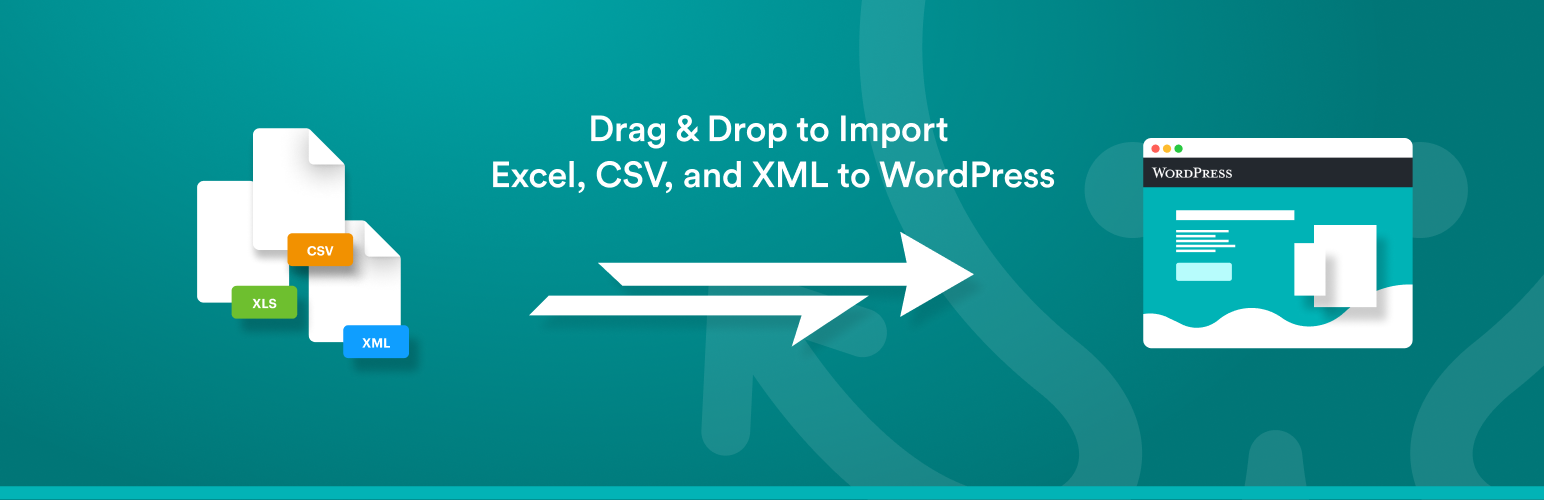
There are no special requirements that the elements in your file must be laid out in a certain way. WP All Import can import any XML, CSV, Excel spreadsheet, or Google Sheets file into WordPress.

WP All Import can be used for everything from migrating content from a legacy CMS to WordPress to building a store with affiliate datafeed to displaying live stock quotes or sports scores to building a real estate portal.

Check out our documentation and video tutorials to make the most of WP All Import.

WP All Import integrates with our companion plugin, WP All Export. You can export posts, WooCommerce products, orders, users, or anything else with WP All Export. Then you can edit the WordPress data with Microsoft Excel, Numbers, or maybe something else, and re-import to the same site or migrate the data to another site with WP All Import.

For technical support from the developers, please consider purchasing WP All Import Pro.

WP All Import Pro Version

WP All Import Pro is a paid upgrade that includes premium support and adds the following features:

  • Import data to Custom Fields – used by many themes, especially those using Custom Post Types – to store data associated with the posts.

  • Import images to the post media gallery – WP All Import can download images from URLs in an XML or CSV file and put them in the media gallery.

  • Import files from a URL – Download and import CSV, XML, or Excel WordPress data files from external websites, even if they are password-protected with HTTP authentication.

  • Cron Job/Recurring Imports from external URLs – WP All Import Pro can periodically check a file for updates, and add, edit, and delete the imported posts accordingly.

  • Execution of Custom PHP Functions on data, i.e., use something like [my_function({xpath/to/a/field[1]})] in your template, to pass the value of {xpath/to/a/field[1]} to my_function and display whatever it returns.

  • Guaranteed technical support via e-mail.

Upgrade to the Pro edition of WP All Import.

Need to import XML and CSV to WooCommerce? Check out our WooCommerce add-on.

WordPress CSV Imports

Read on to learn more about the CSV importer functionality of WP All Import. Importing CSVs with WP All Import is exactly the same as importing XML files because internally, WP All Import actually converts your CSV file to an XML file on the fly. You can use the same XPath filtering options and all the same features you have when importing XML files.

CSV imports, including those exported from Excel and Google Sheets, don’t require your file to have a specific structure. Your CSV file can use any column names/headings. You can map the columns in your CSV file to the appropriate places in WordPress during the import process.

When importing CSV files, your CSV should have UTF-8 encoding if you are having trouble importing special characters.

In step 2 of a CSV import, you can specify an alternative delimiter if you aren’t using a comma. WP All Import can import CSVs that are pipe-delimited, # delimited, or delimited/separated by any other character.

For CSV import tutorials and example files, visit our documentation. Please keep in mind CSV imports with WP All Import are just like XML imports – you have all the same functionality, and the process is exactly the same. Any of our tutorial videos that apply to XML files also apply to importing CSV files, so if you see a tutorial with us importing an XML file, know that you can follow the exact same steps for a CSV import.

WordPress Excel Import / Google Sheets Import

Don’t want to convert your Excel or Google Sheets data to CSV? WP All Import also works as a Google Sheets and Excel importer for WordPress. Simply upload your Excel file as you would for CSV and WP All Import will automatically detect the columns in your file.

For Google Sheets, use the ‘Download a file’ option and paste your sheet’s public URL to import data to WordPress.

Add-Ons

A number of premium add-ons are available to add functionality to the importer and make XML, CSV, Google Sheets, and Excel import tasks to complex plugins simple.

  • Advanced Custom Fields Add-On – ACF XML & CSV importer
  • WooCommerce Add-On – XML & CSV importer for all WooCommerce product types
  • User Import Add-On – XML & CSV importer for users, including user_meta
  • Link Cloak Add-On – Auto-create redirects for links present during an XML or CSV import

Learn more about our add-ons at http://www.wpallimport.com/add-ons

A developer API (action hooks) is also available.

Related Plugins

Export any WordPress data to XML/CSV
Import Products from any XML or CSV to WooCommerce
Export Products to CSV/XML for WooCommerce
Custom Product Tabs for WooCommerce WP All Import Add-on
Export Orders to CSV/XML for WooCommerce
Export WordPress Users to CSV/XML

Premium Support

You can submit the support form on our website or email us at support@wpallimport.com. While we try to assist users of our free version, please note that support is not guaranteed and will depend on our capacity. For premium support, purchase WP All Import Pro.

Import To WooCommerce

Need to import Excel, XML and CSV to WooCommerce? Check out our WooCommerce add-on.

WooCommerce Excel, XML & CSV Import Pro Version

راهنمای نصب برای این آیتم موجود نیست.

سوالات متداول

How do I import WordPress data?
  1. Go to All Import › New Import.
  2. Upload the import file.
  3. Choose the import post type.
  4. Map the incoming data elements to the WordPress fields.
  5. Complete the import and verify the imported data.
Can I import any WordPress post type?

Yes. You can import any standard WordPress post type, including posts, pages, categories, tags, users, comments, and images. You can also import custom data from third-party themes and plugins.

How does WordPress import work?

The default WordPress import tool uses a brute-force approach that often imports all or nothing. WP All Import is a lot more flexible and lets you filter, modify, and map incoming data elements so that you can import your data exactly as you want it.

Does my data have to be specially organized for WordPress imports?

Not when you use our plugins. Our Drag & Drop interface lets you map incoming data elements to any WordPress field. You can even modify the incoming data as part of the import process, so we can handle a wide variety of import layouts.

How do I import a CSV file into WordPress?

To import a CSV file into WordPress, just specify the CSV file as your import source. WP All Import will automatically recognize the file type and adjust the interface accordingly. You don’t need to do anything special to handle the CSV format.

How do I import XML data into WordPress?

To import XML data into WordPress, just specify the XML file as your import source. WP All Import will automatically recognize the file type and adjust the interface accordingly. You don’t need to do anything special to handle an XML file.

How do I import Excel data into WordPress?

To import Excel data into WordPress, just specify the Excel file as your import source. WP All Import will automatically recognize the file type and adjust the interface accordingly. You don’t need to do anything special to import WordPress Excel files.

Can I import Google Sheets to WordPress?

Yes. WP All Import includes an option to download a file from an external URL. You can add your WordPress data to a Google Sheet, copy its URL, and then paste the sheet’s URL into WP All Import.

How do I import large files into WordPress?

To import large files into WordPress, you can use our advanced settings to split the import into manageable chunks, modify the batch processing size, and take several other steps to either speed up the import or reduce its impact on the server.

How do I import data into a WordPress custom plugin?

Our plugin automatically recognizes many WordPress custom plugins and themes, so just select the custom post type, and away you go. If a custom plugin stores its data in an unconventional manner, just contact our support staff for further guidance.

Can I use WP All Import on all of my WordPress sites?

Yes. Our plugins come with unlimited licenses, so you can install them on all of your own websites.

Can I import WooCommerce customers, products, and orders?

We have special add-ons for all types of WooCommerce data, so you can import WooCommerce customers, orders, products, reviews, and anything else WooCommerce has to offer.

How do I import WordPress posts as a draft?

In Step 3 of the import process, under Other Post Options, change the Post Status to Draft. This ensures that all imported posts will be created as drafts.

How do I import images into WordPress?

In the Drag & Drop screen, map the incoming image elements to the appropriate fields in the Images section. The tricky part about images is that they can have many different sources, including URLs, images that are on your computer, images that are already on your server, and even images that are already in your media library. To understand how to handle each of these scenarios, see our documentation.

How do I import a featured image into WordPress?
  1. Create a standard WordPress import.
  2. In Step 3, add the images element in the Images section.
  3. Check the Set the first image to the Featured Image (_thumbnail_id) option.
  4. Complete the import.
  5. Verify that the featured image(s) were correctly imported.
How do I migrate WordPress data to another website?
  1. Export the WordPress data that you wish to migrate.
  2. Download the Bundle option, which includes import instructions.
  3. Import the bundle file on the target site.
  4. WP All Import will use the bundle file to automatically configure itself.
  5. Run the import and review your migrated data.
How do I bulk edit WordPress data?
  1. Export the WordPress data that you wish to edit.
  2. Edit the export file in your favorite spreadsheet app.
  3. Use the Import with WP All Import option to configure your import.
  4. Run the import.
  5. Review the affected data to make sure the changes were applied.
How do I get support?

If you are using the free version of the plugin, you can obtain support through the WordPress.org community forums. If you have purchased the premium version, you can email us directly and we will respond as quickly as we can, typically in less than one business day.

×
نظری برای این آیتم موجود نیست.
0 0 رای ها
امتیازدهی
اشتراک در
اطلاع از
0 نظرات
قدیمی‌ترین
تازه‌ترین بیشترین رأی
هیچ نسخه‌ای برای این آیتم موجود نیست.
★★★★★
★★★★★
4.7 /5 (1,958 نظر)

قیمت:

رایگان

نگارش

آخرین انتشار

9 اردیبهشت 1405

آخرین بروزرسانی

4 ماه پیش

نصب های فعال

100,000+

نگارش وردپرس

وردپرس 5.0+

تست شده از نسخه

وردپرس 6.9.4

نگارش PHP

PHP 7.4+

نسخه ها

0 نسخه




