

Selling to customers in Europe, North America, Asia, or somewhere else?
YayCurrency makes it easy to offer a localized shopping experience no matter where your buyers are.
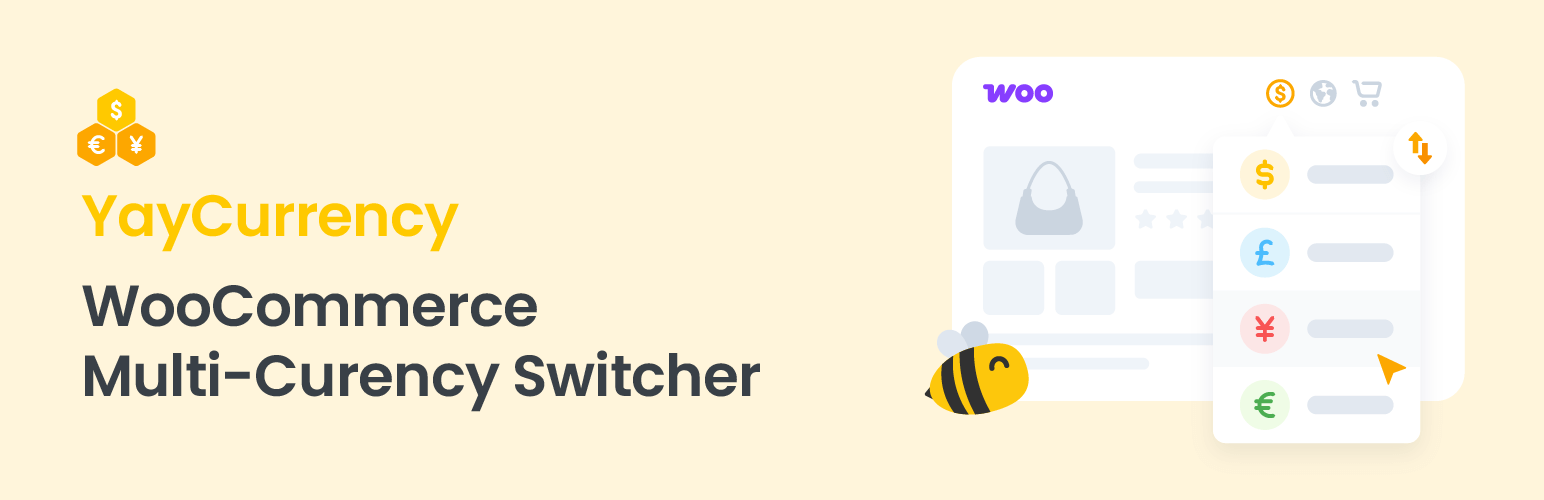
It is a powerful yet easy-to-use WooCommerce multi-currency switcher that helps you grow your international sales by letting customers shop and pay in their local currency.
🌐 With automatic exchange rates, prices based on country, and compatibility with 50+ popular WooCommerce plugins, YayCurrency makes you ready to scale your store.
Key Features
Local Currency Payments – Showing real-time converted prices across your store and checkout.
Accurate Order Emails – Order confirmation emails are sent in the customer’s selected currency, ensuring clarity and building trust.
Compatible with Cache Plugins – Currency switching works smoothly without affecting your site speed or caching setup.
Customizable Conversion Fees & Rounding – Adding conversion margins, applying percentage-based payment fees, and rounding prices clean, customer-friendly pricing displays.
Sell Globally with Localized Pricing – No Code Needed!
Whether you’re selling in USD, EUR, GBP, or beyond, YayCurrency allows you to display product prices in local currencies and handle payments accordingly. It works out of the box with a quick and intuitive setup, helping you create a frictionless shopping experience for customers worldwide.
Used by WPMayor and trusted by store owners worldwide.
⚡️ FEATURES
Currency Switcher on Product Page
Show the WooCommerce multi currency switcher dropdown above Add to cart button on WooCommerce product pages, and other popups where your single product appears including Quickview, filters, etc.
Customize Currency Switcher Drop-down
You can customize currency format by displaying country flags, currency symbol, currency code, or both. It’s easy to display the currency switcher anywhere using [yaycurrency-switcher] shortcode. The pricing can be customized using correct formatting for thousand separator, decimal separator, spacing, and rounding.
WooCommerce Sales Reports
Visit WooCommerce > Reports > Orders, and you can view your store performance based on currency. Once filtered, you will easily see your total sales, leaderboards, orders, and top products sold in each currency.
Pretty Price Ending
Round the converted prices to your desired threshold and make them end in target figures (such as 00, .49, .79, .99, and so on). Psychological pricing made easy with YayCurrency. You can run live test calculations to be sure you’ll have the right WooCommerce multi currency outcome.
Manage Conversion Fee
For each currency pair, your bank, payment processor, or money transfer operator may apply a currency exchange fee. To reduce cash loss, you can optionally add a conversion fee to WooCommerce multi currency settings.
Multiple Currency Switcher Widgets
Display the WooCommerce multi currency switcher at your store’s optimal point using the widget customizer and shortcode.
Even when you’re already using various widgets of chatbox, contact button, or other theme widgets, you still can find a sweet spot for the currency converter.
Switchable During Checkout
Allow switching currency during checkout and record purchase transactions based on the local supported payment methods. In WooCommerce Orders history, you will see order values recorded in different currencies.
Choose the Geolocation Method That Fits Your Setup (PRO)
- Auto Detect: Let YayCurrency intelligently select the best available method
- WooCommerce Geolocation: Reliable and built-in option for most stores
- MaxMind Geolocation: Advanced accuracy with WooCommerce integration
- IP2Location: Alternative database for precise IP-based targeting
🎏 COMPATIBILITY
Using a third-party plugin? No worries, this WooCommerce multi currency free plugin can work with your favorite WooCommerce extensions:
- Stripe For WooCommerce
- WooCommerce Subscriptions
- Product Add-Ons
- Dynamic Pricing & Discounts
- Name Your Price
- Table Rate Shipping plugin
- WooCommerce Per Product Shipping plugin
- PayPal Payments
- PeachPay
- Pay for Payment for WooCommerce
- WP Grid Builder Caching
- CartFlows
- JetSmartFilters
- WooCommerce FedEx Shipping Plugin with Print Label
- WooCommerce Custom Product Addons
- Woo Cart Product module of Divi theme
- B2BKing for WooCommerce
- Wholesale Pro by Barn2
- WooCommerce TM Extra Product Options
- WooCommerce One Page Checkout
- Woo Discount Rules plugin
- WooCommerce Product Bundles
- Advanced Product Field plugin
- AG WooCommerce Tyl By NatWest Payment Gateway plugin
- Role Based Pricing for WooCommerce plugin
- PPOM
- LiteSpeed Cache plugin
- HivePress plugin
- Buy Once or Subscribe for WooCommerce Subscription plugin
💎 PREMIUM-ONLY FEATURES
Unlimited Currencies
It supports all currency units in the world, including crypto like Bitcoin (BTC). You can add as many as you need to WooCommerce multi currency plugin.
Price Based on Country
Auto-detect the customer’s IP address and show the product prices in their local currency. You don’t have to config anything as this WooCommerce multi currency plugin is readily built with GeoIP services.
Accept Checkout Payments in Different Currencies
Based on your settings for each local currency, the order can be placed in the currency chosen by the user. And the product prices are also displayed in the selected currency in order confirmation email templates.
Auto-Update Exchange Rate
Exchange rates are automatically updated on regular intervals. You can force the update once in 30 minutes, 6 hours, 7 days, or your custom duration.
Comprehensive Analytics by Currency
You will have full access to your store’s analytics. Under Analytics menu > go to Overview, Revenue, and Orders, you will see a breakdown of sales by currency, product or service category. These provide a detailed and accurate picture of your business, allowing for better decision-making and strategic planning.
🔑 HOW IT WORKS
YayCurrency works seamlessly with all native WooCommerce payment methods.
Using Direct bank transfer, Check payments, Cash on delivery, PayPal Standard, or Stripe payment gateway? We got you covered!
- Choose your default currency in WooCommerce > Settings > Currency options.
- Then click on Configure multi-currency to start adding other currencies.
- When a new currency is added, it takes on your WooCommerce store’s default currency format, including currency symbol position, thousand separator, decimal separator, and number of decimals.
- Then, you can localize each currency by changing the formatting options in the currency’s drawer panel.
Find out more:
✅ Approved by WooCommerce: Multi-Currency Switcher on WooCommerce.com
🔍 Want to see YayCommerce in action? View all YayCommerce plugin demos and explore the full suite of features.
COMMON USE CASES
Global Brands
Want to reach out to your nation’s neighbor or sister countries? Guess what, they’ll definitely love to see your products in their national currency. Why not send them a tailored catalogue now?
Dropshipping Business
So you’re connecting the manufacturers and the end customers? Just start off by selling internationally.
Digital Products
Downloadable and bookable products have a borderless sales potential. Unleash it.
Distributors
This WooCommerce multi currency free plugin works with all major B2B, wholesale, and quote request plugins. Try it.
Just a Startup in Progress?
No worries, try out YayCurrency free version. It is the most beginner- and startup-friendly plugin in the world of WordPress.
Happy Currency-Switching! 💛






